Activity Management
- Activity management enables admin to customize the activities they hope to monitor in the report, e.g. blood pressure, sleeping hours, etc
- Location: Activity -> Activity Management
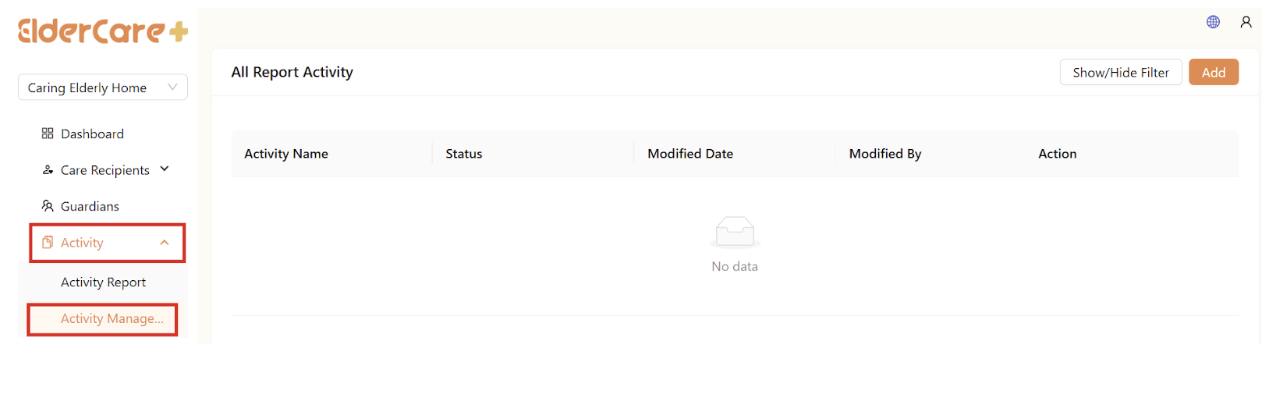
How to Add Activity
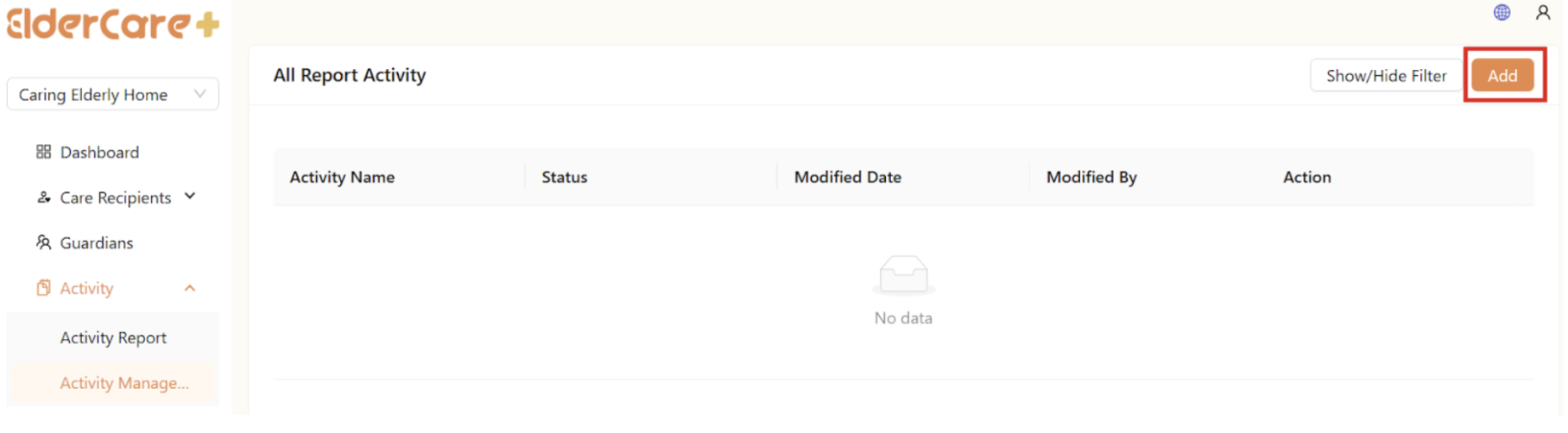
- Click “Add”
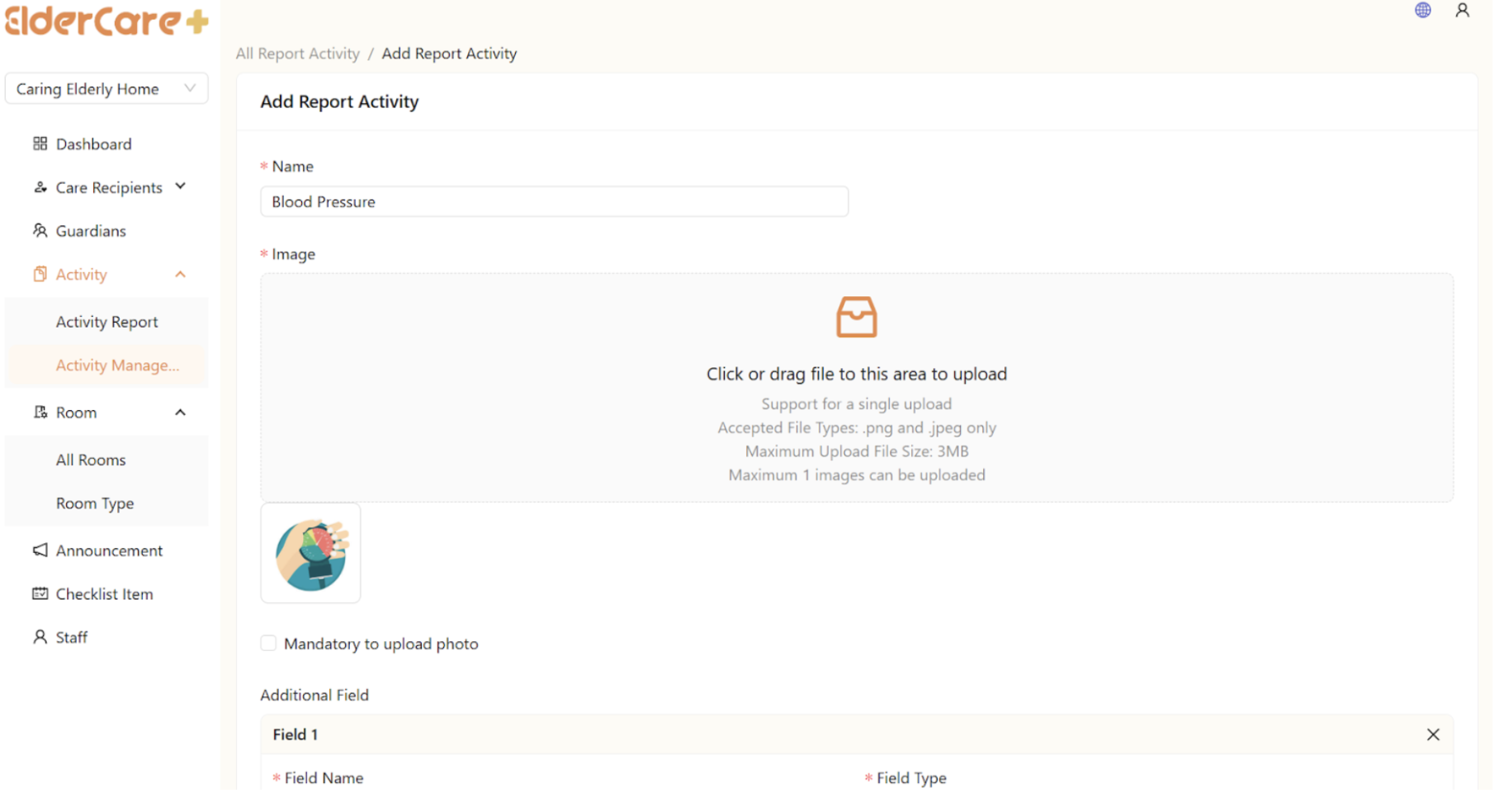
- Fill in the required fields
How to Add Customize Fields to the Report
- Under “Additional Fields”, fill in a field name. For example, if the activity name is “Blood Pressure”, “Systolic Blood Pressure” can be one of the additional fields
- Then select a field type
How to Select Field Type for Additional Field
- Click the dropdown button “Field Type” under the additional field
- There are 3 selections for the field type: “Option”, “Text”, and “Numeric”
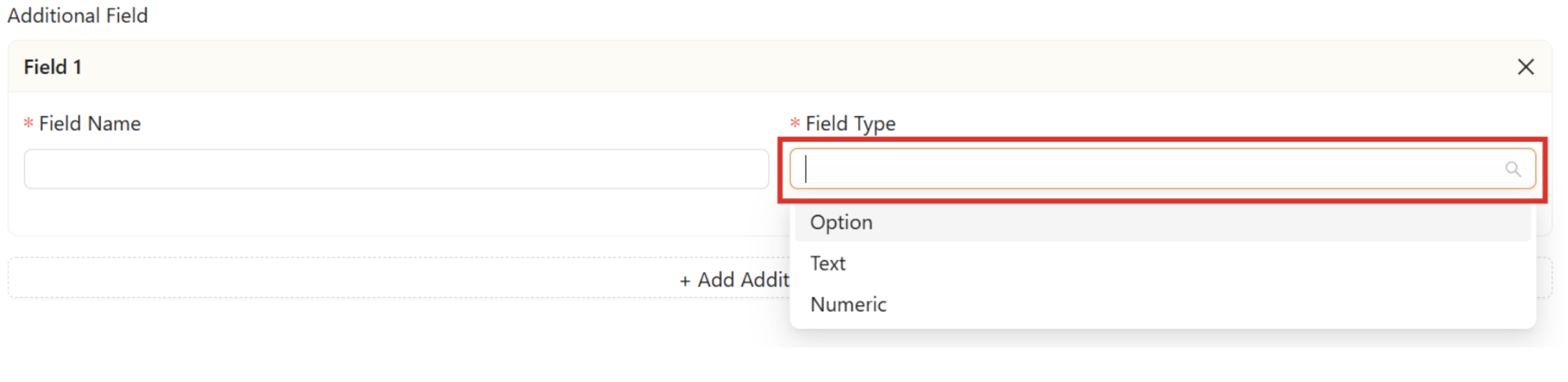
a. Option
- By selecting “Option”, staff are only able to fill in the report with the given options added by admin
- Enter the option in the field, then click “Add”
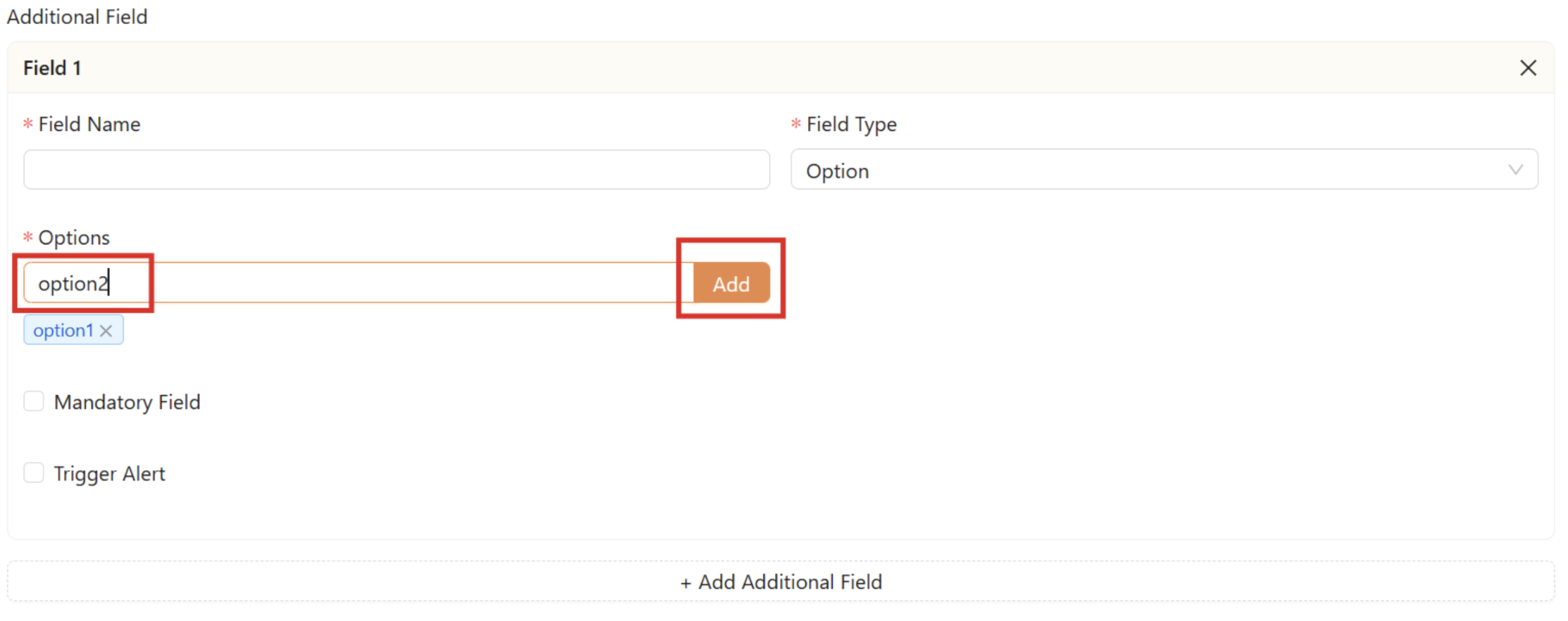
- The option added can be remove
- Click on the "X" next to the added option that you wish to remove
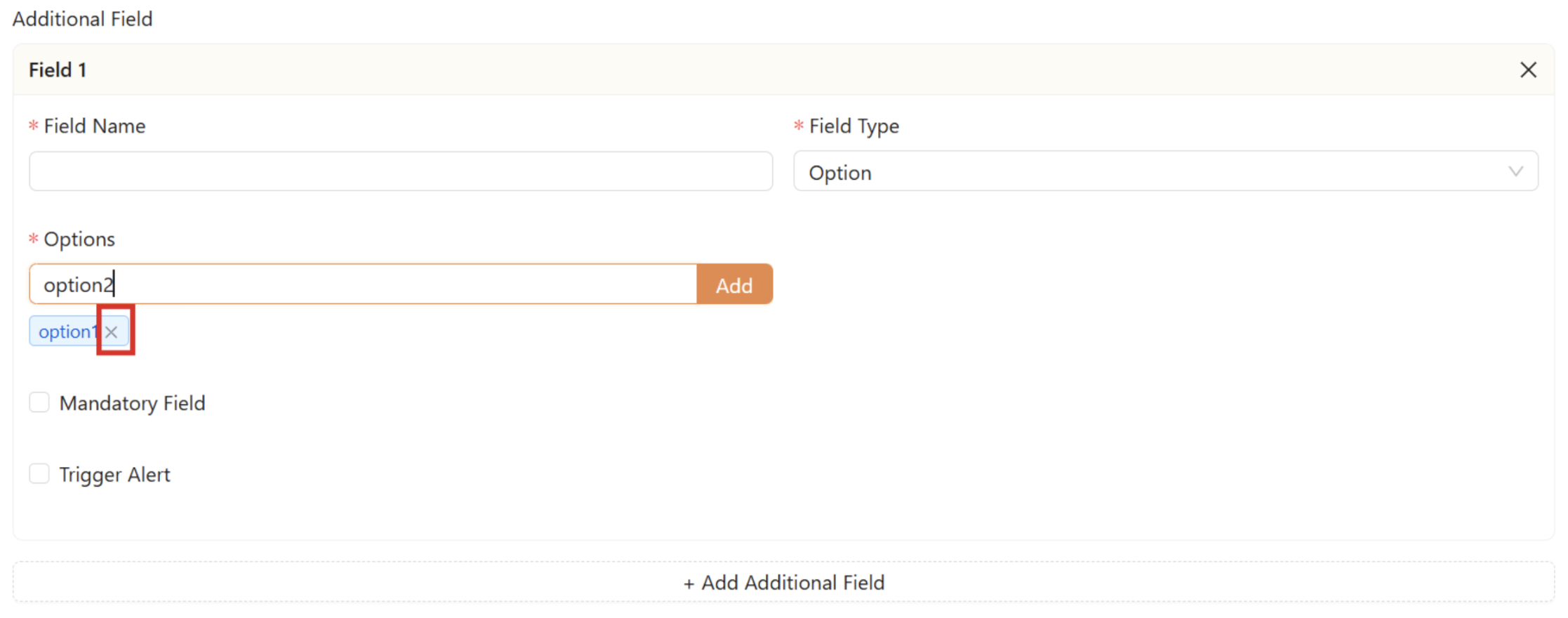
b. Text
- By selecting “Text”, staff are capable to enter free text in the report
- Alert cannot be triggered in this field
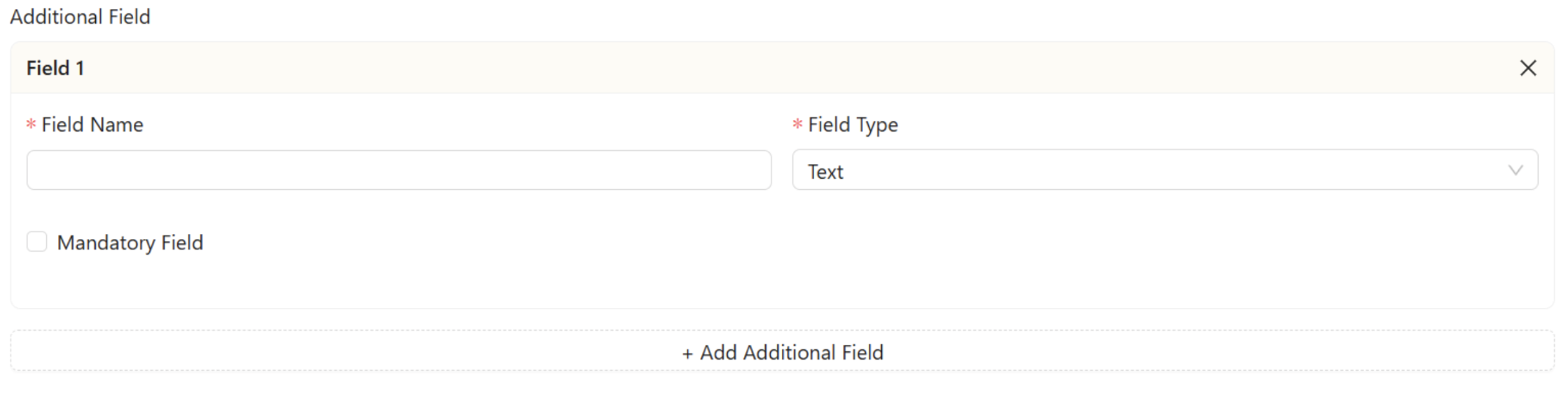
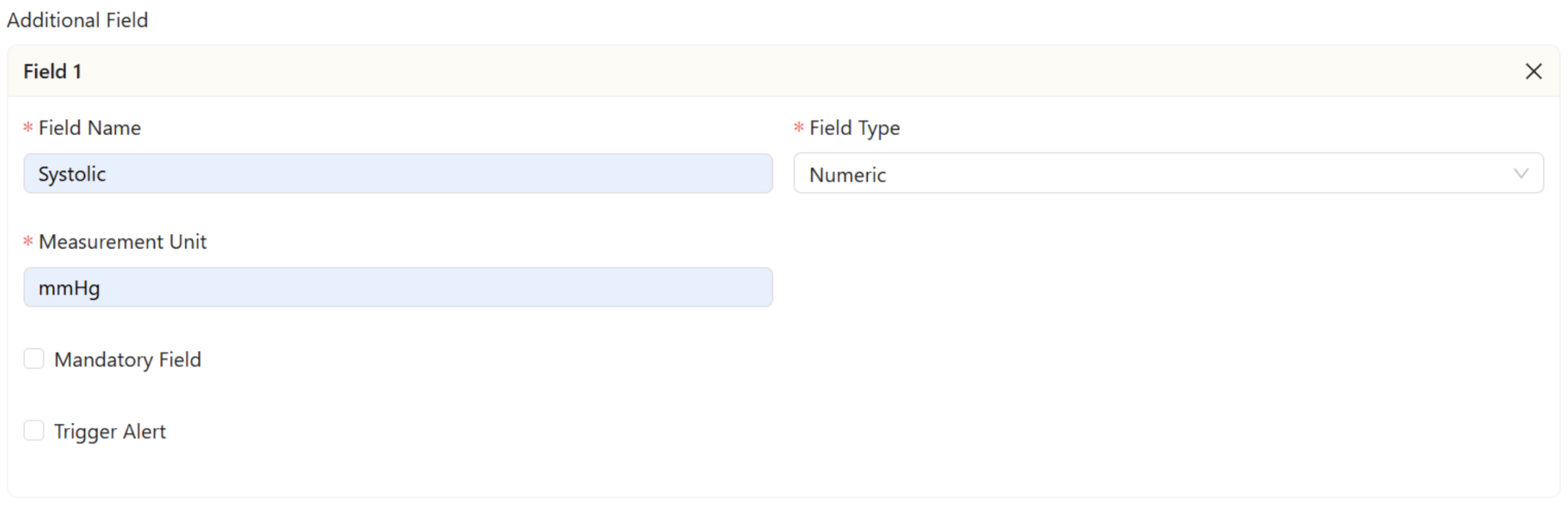
c. Numeric
- By selecting “Numeric”, staff can only enter numbers under the specific measurement unit
- For example, if the admin hopes to monitor on readings such as systolic blood pressure, fill in “mmHg” as the measurement unit
How to Trigger Alert for Additional Field
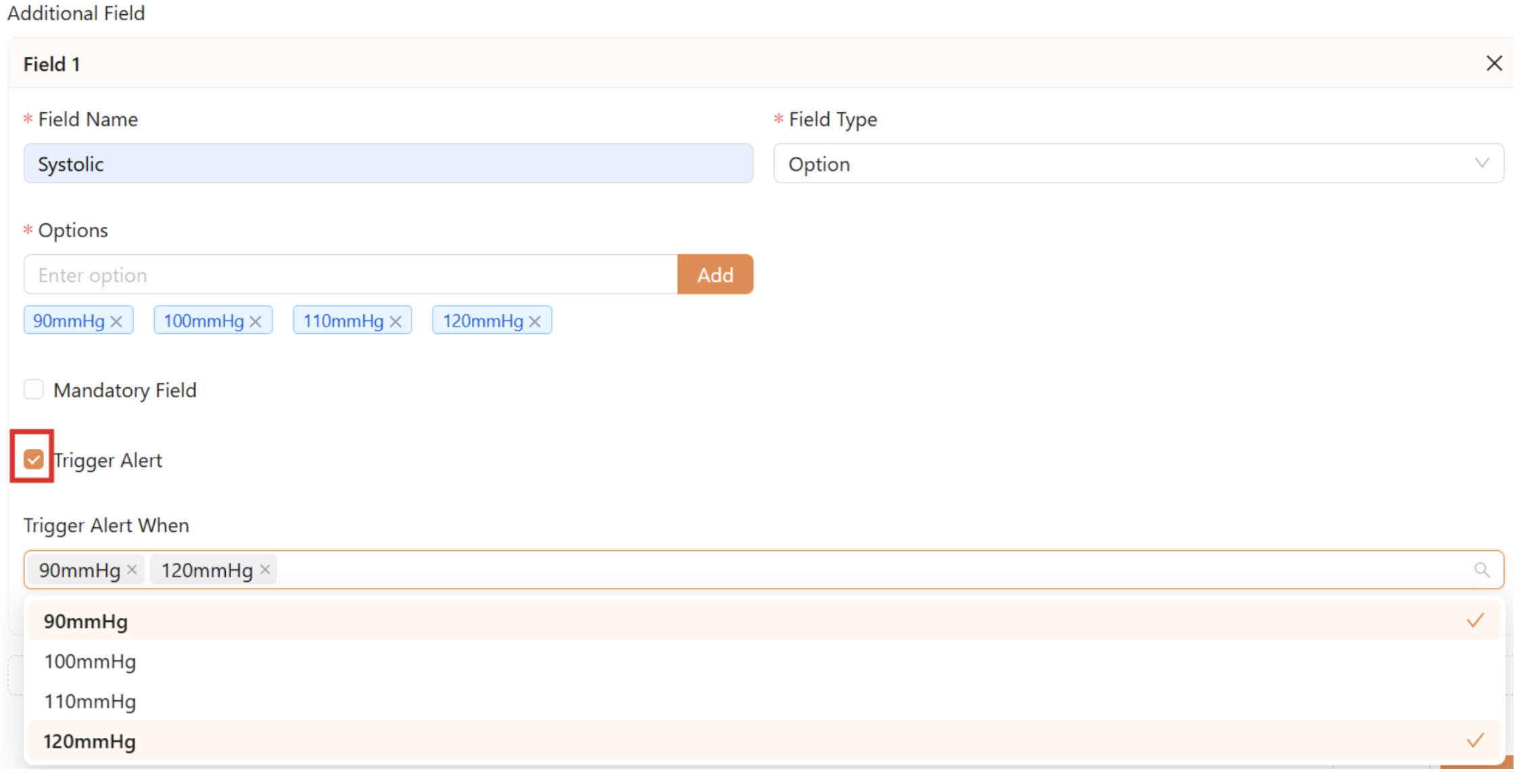
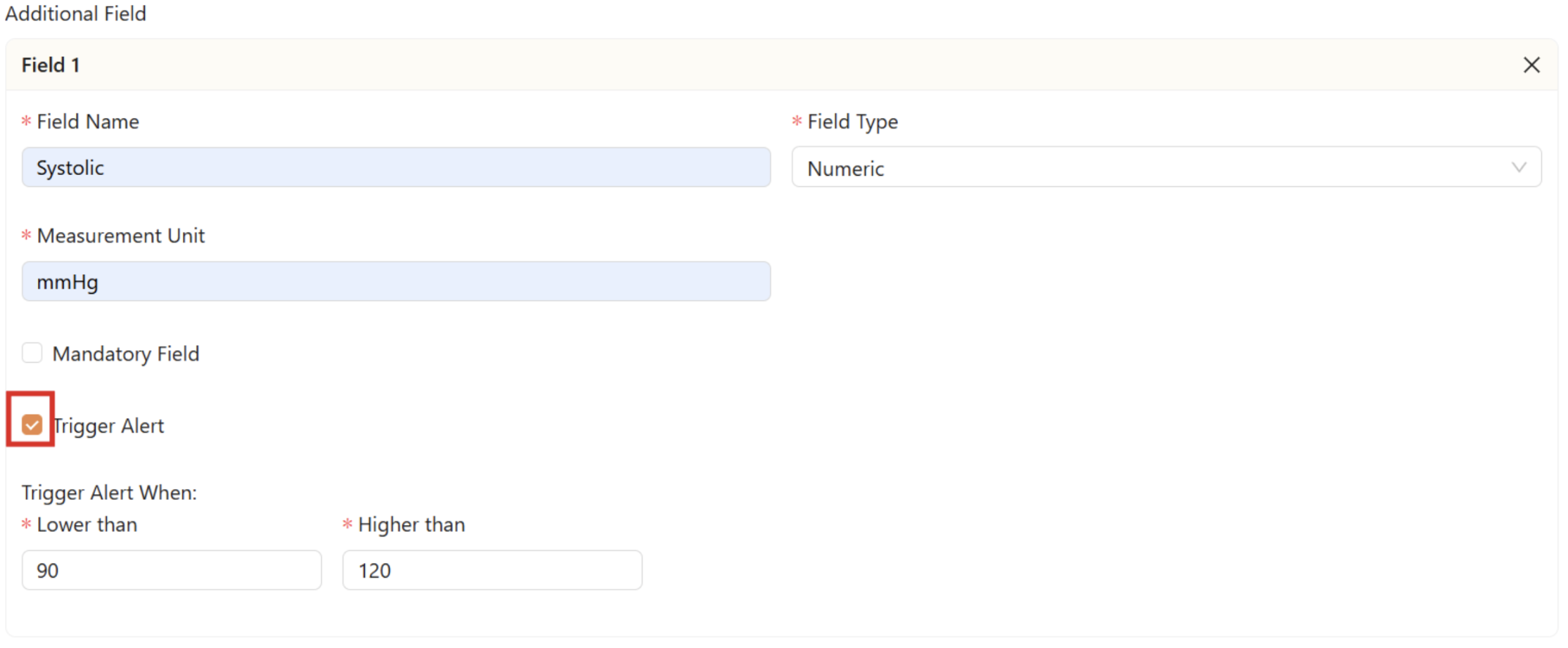
- Trigger alert is only applicable for field type “Option” and “Numeric"
- Tick on the tickbox “Trigger Alert”
- For “Option”, select the options that alert will be triggered
- For “Numeric”, fill in the range that alert will be triggered
 '
'
How to Set Additional Field as Mandatory to Fill In
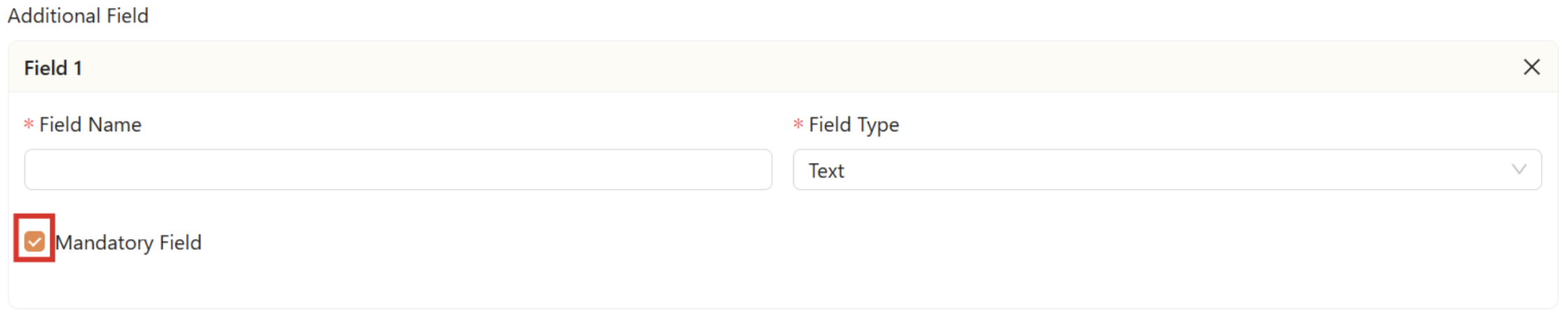
- Tick on the tickbox “Mandatory Field”
How to Add Another Additional Field
- Click “+ Add Additional Field”
- Fill in the required fields

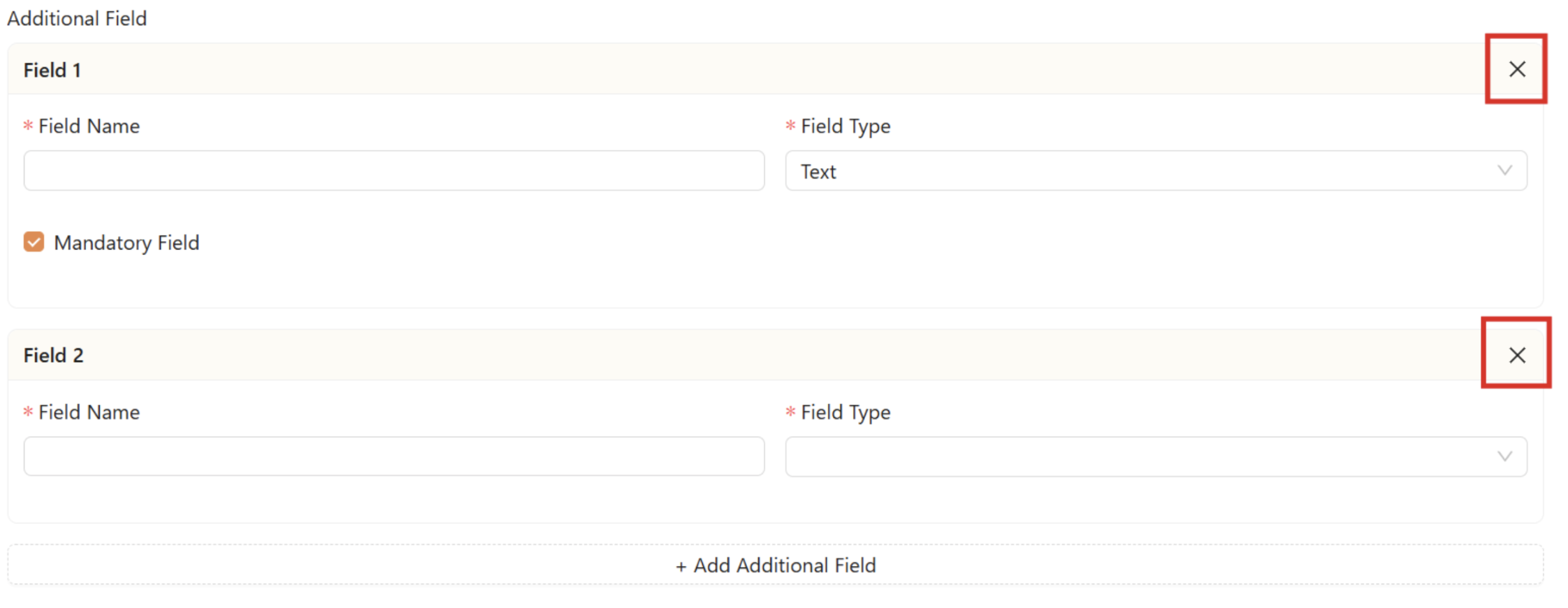
How to Remove An Additional Field
- Click “X” of the field
How to Set Mandatory to Upload Photo for This Activity
- Tick on the tickbox “Mandatory to upload photo”

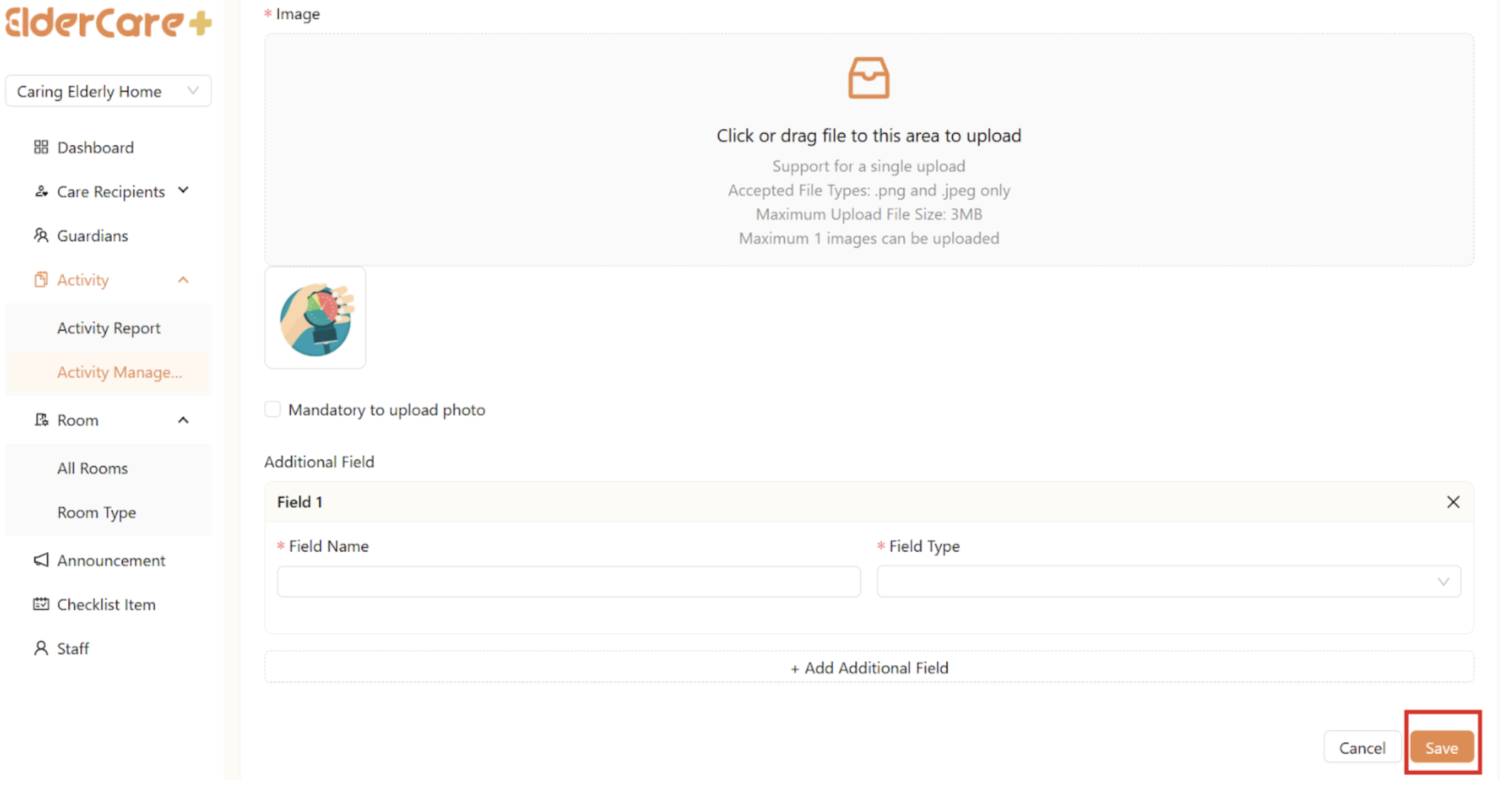
How to Save Activity
- After done creating the activity, be sure to click “Save”
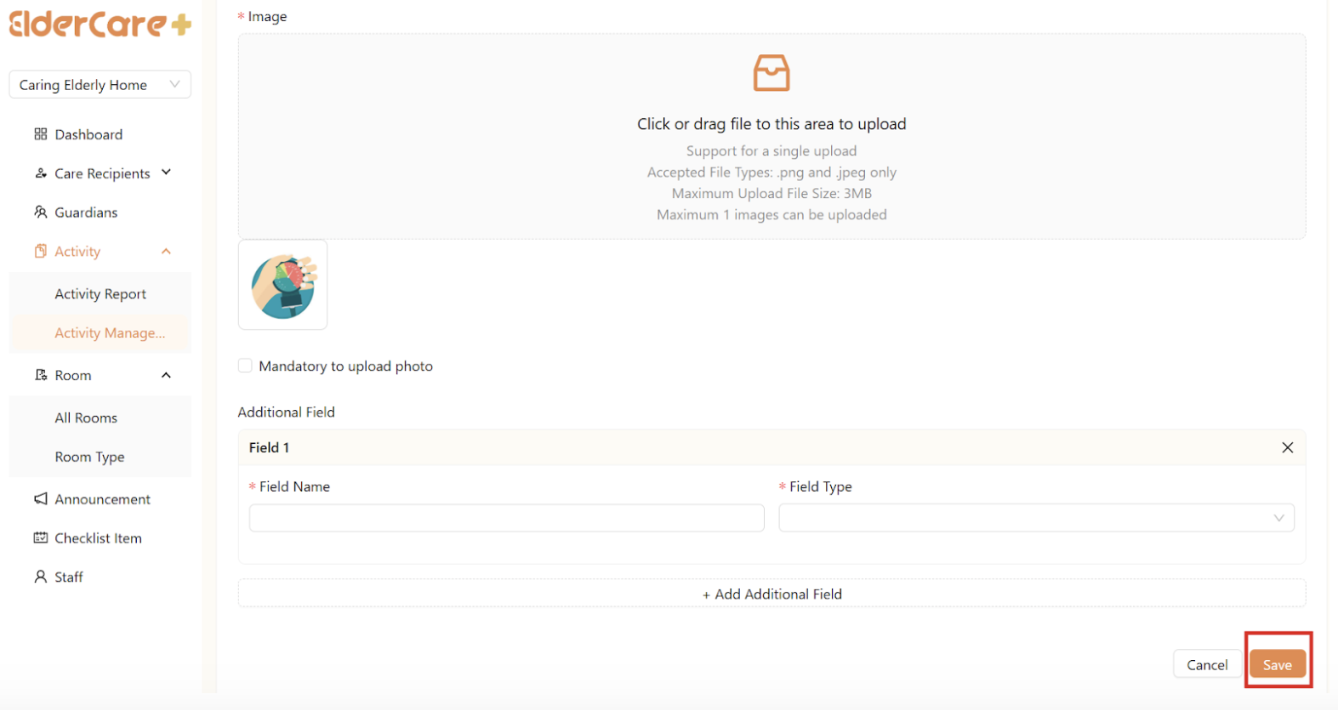
How to Edit Activity
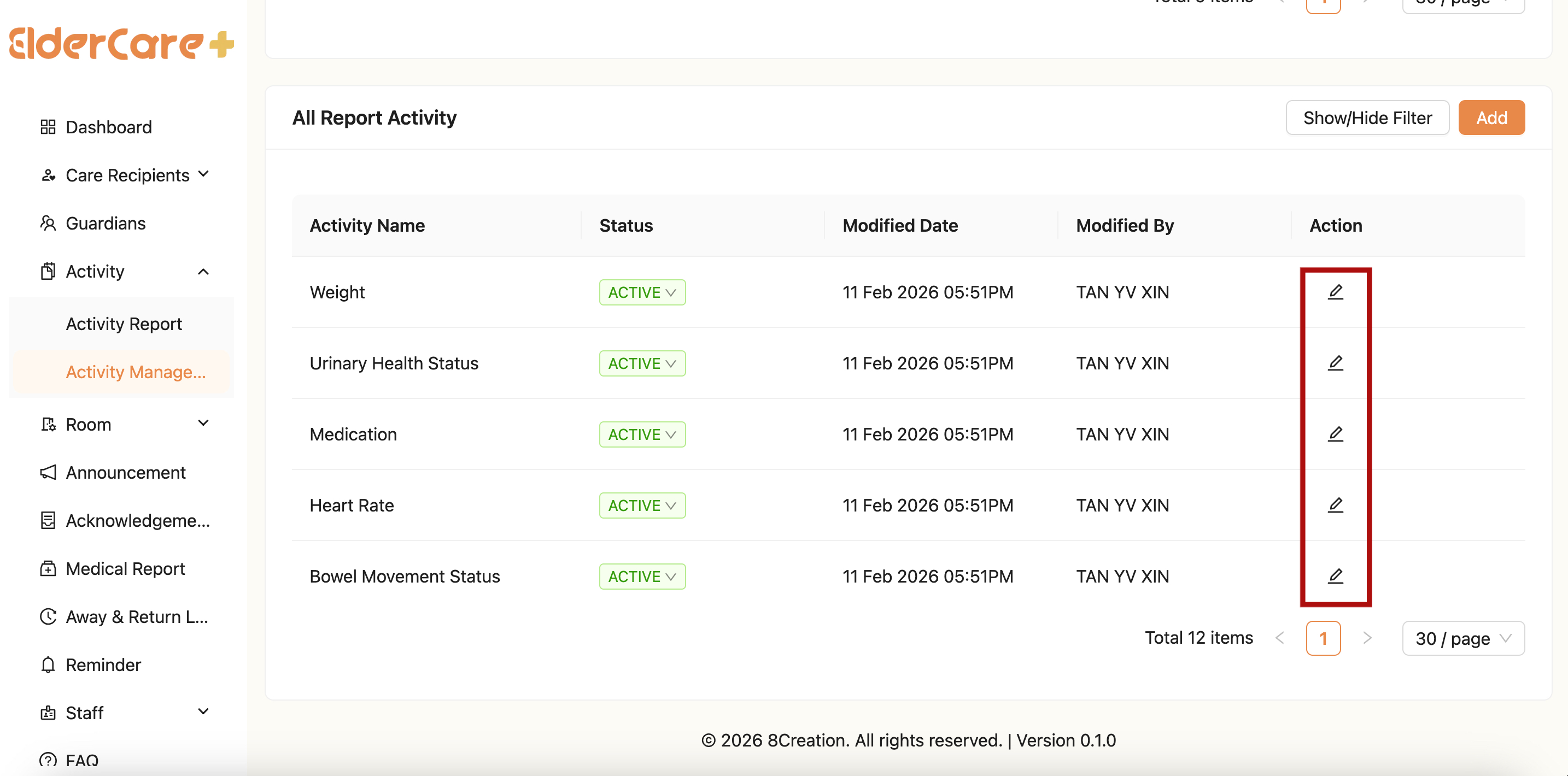
- Click on the Edit icon
- Make changes in the required field, then click “Save”

How to Unpublish Activity
- Click “Active” under status, then click “OK”
- The activity status is switched to “Inactive”
- Unpublished activity will be hidden from the selection of activity in the staff mobile app

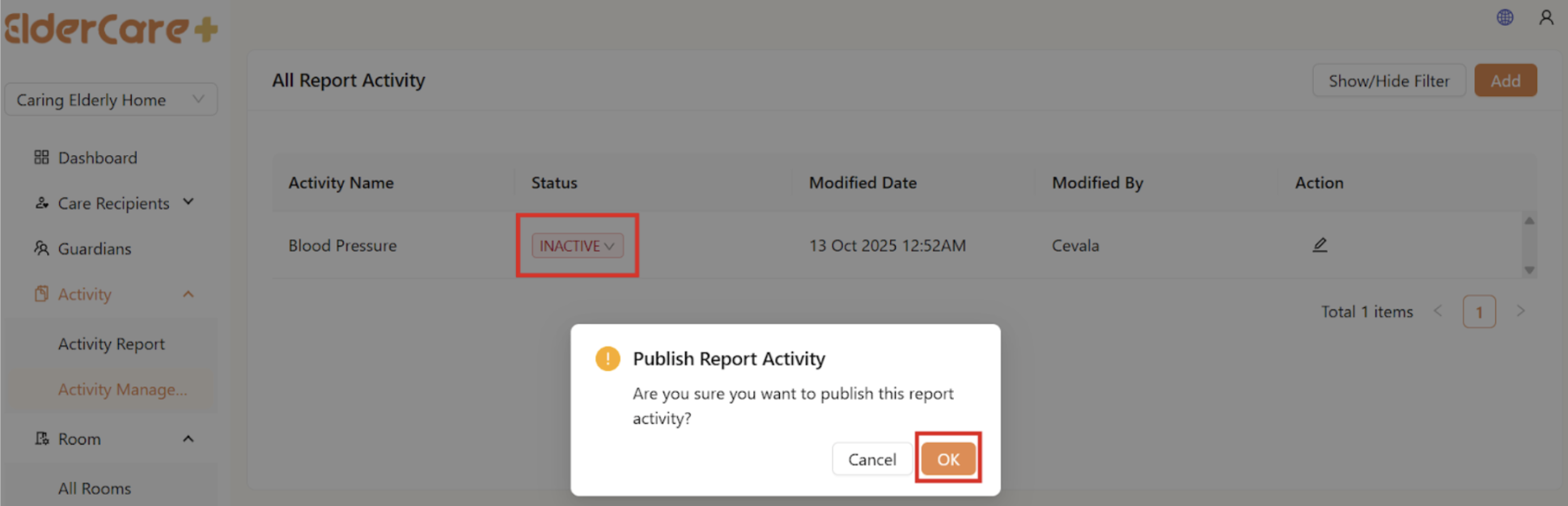
How to Publish Activity
- Click “Inactive” under status, then click “OK”
- The activity status is switched to “Active”
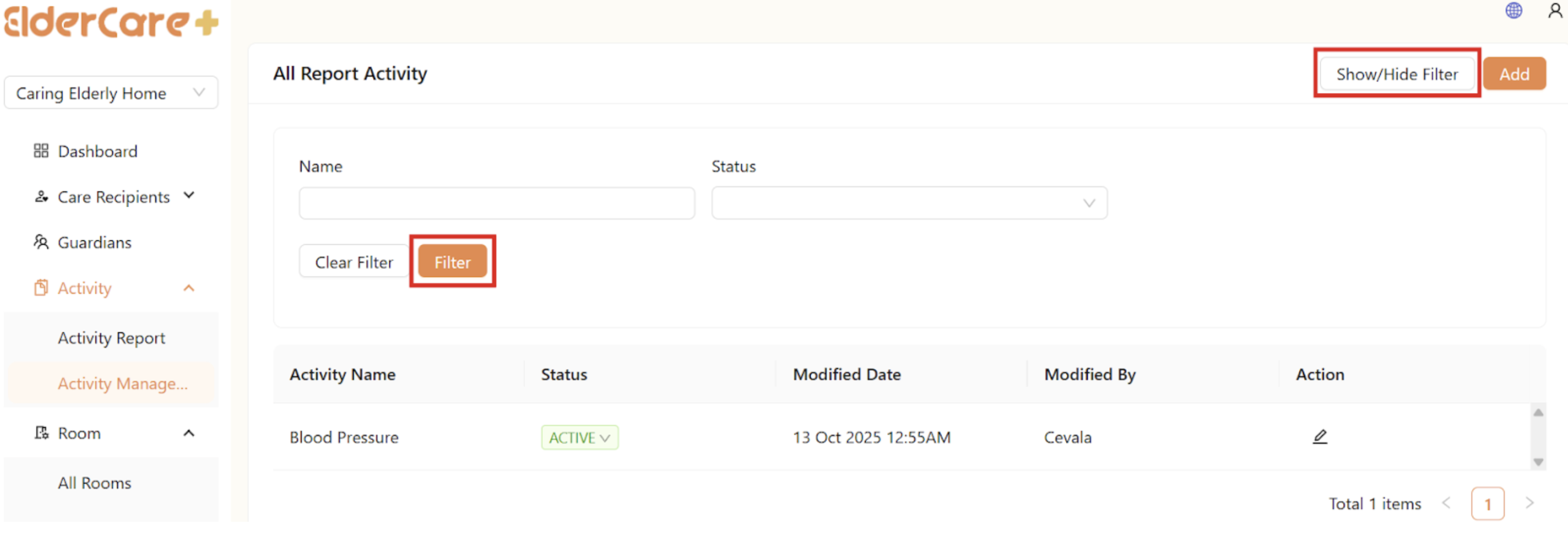
How to Filter Activity
- Click “Show/Hide Filter”
- Fill in the field that you wish to filter, then click “Filter”
Activity Template
- Location: Activity -> Activity Management
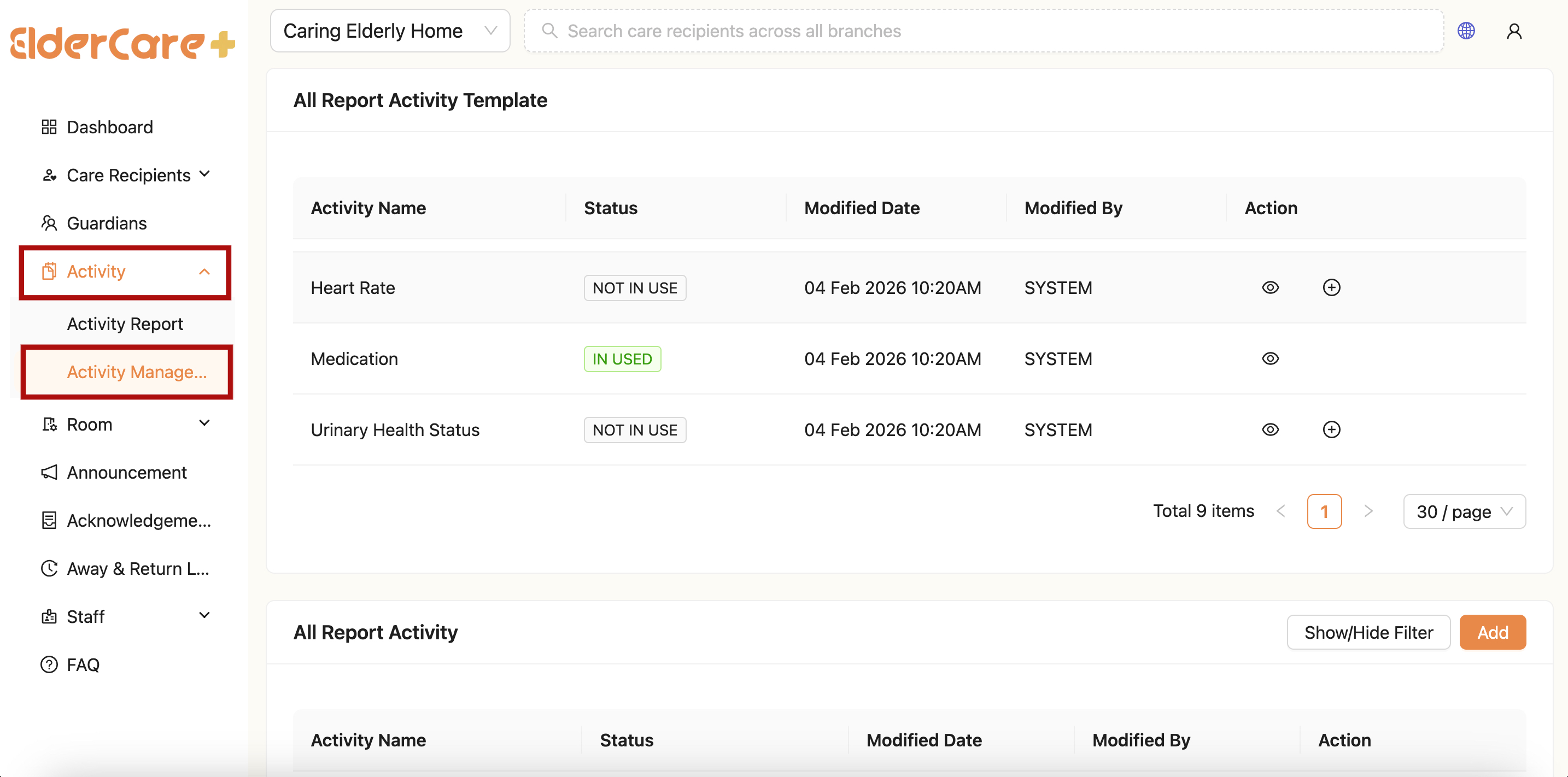
- The Activity Template module includes 9 predefined templates:
- Blood Glucose
- Blood Oxygen
- Blood Pressure
- Body Temperature
- Bowel Movement Status
- Heart Rate
- Medication
- Urinary Health Status
- Weight
- These templates help standardize health data recording and ensure consistency in documentation
- All data recorded using the Activity Templates will be used to generate medical reports in the future.
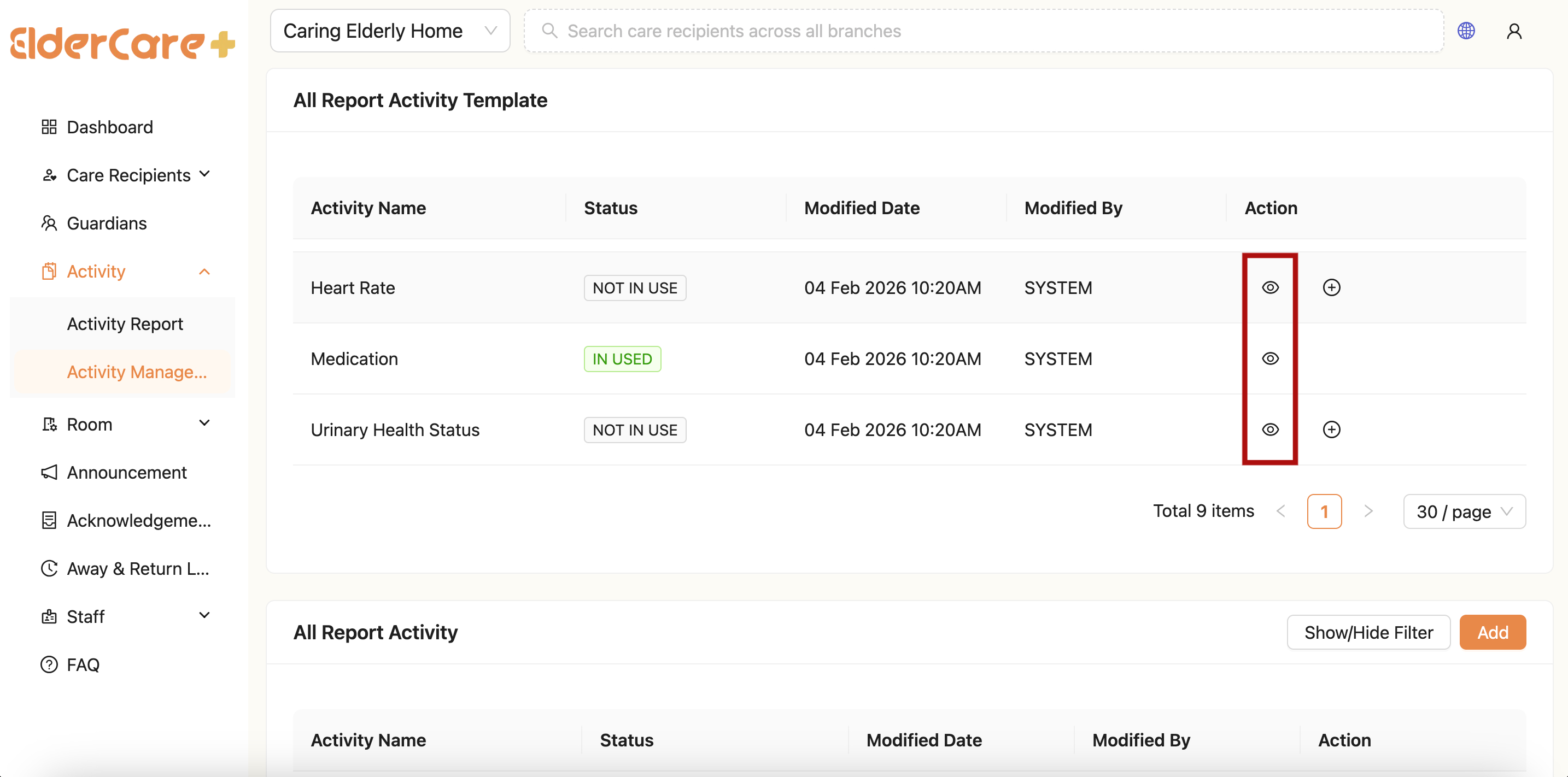
How to View Activity Template
- Click View icon
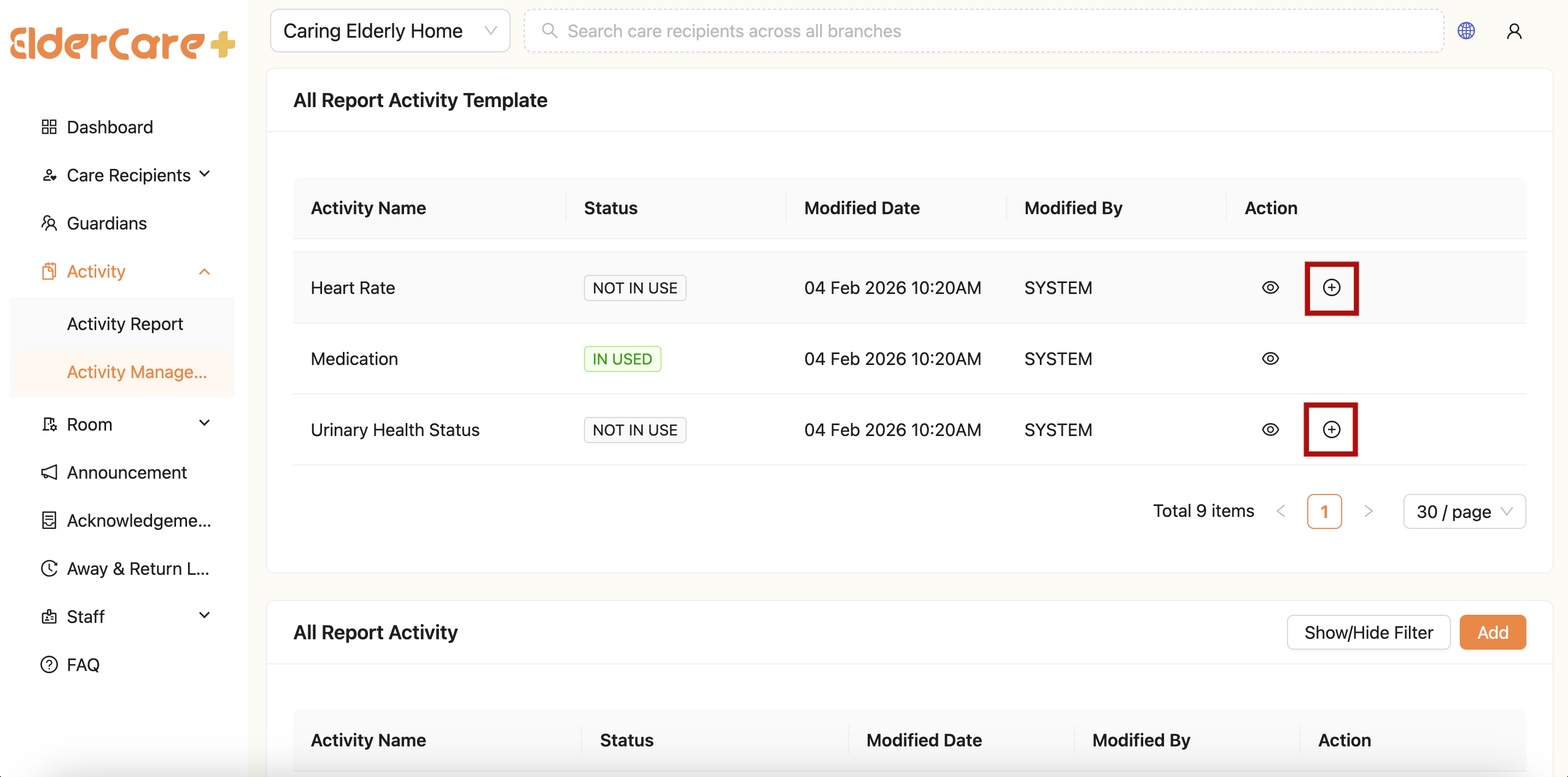
How to Add Activity Template
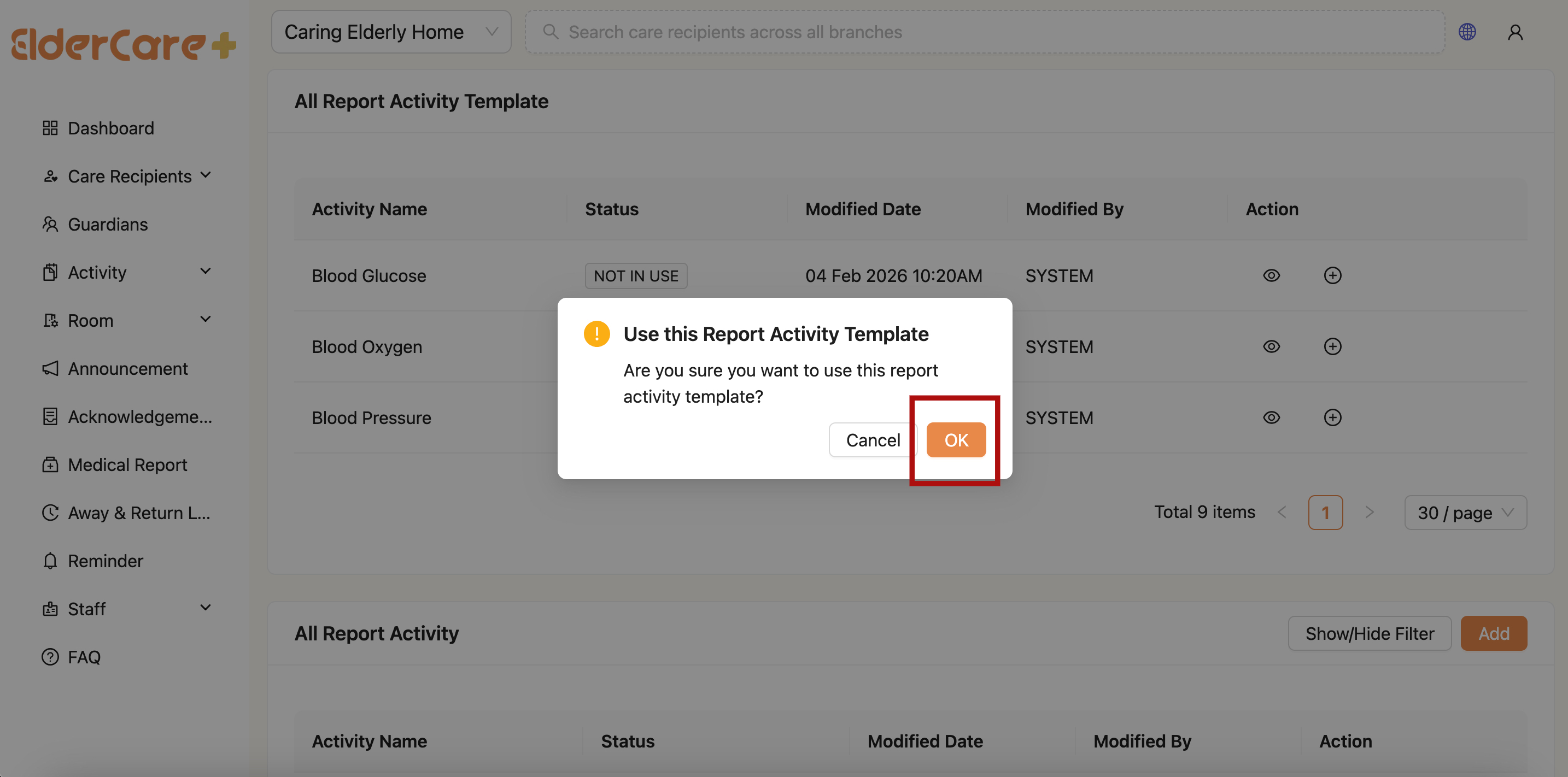
- To use an Activity Template, you have to add it as your report activity
- Click "+"
- Click "OK"
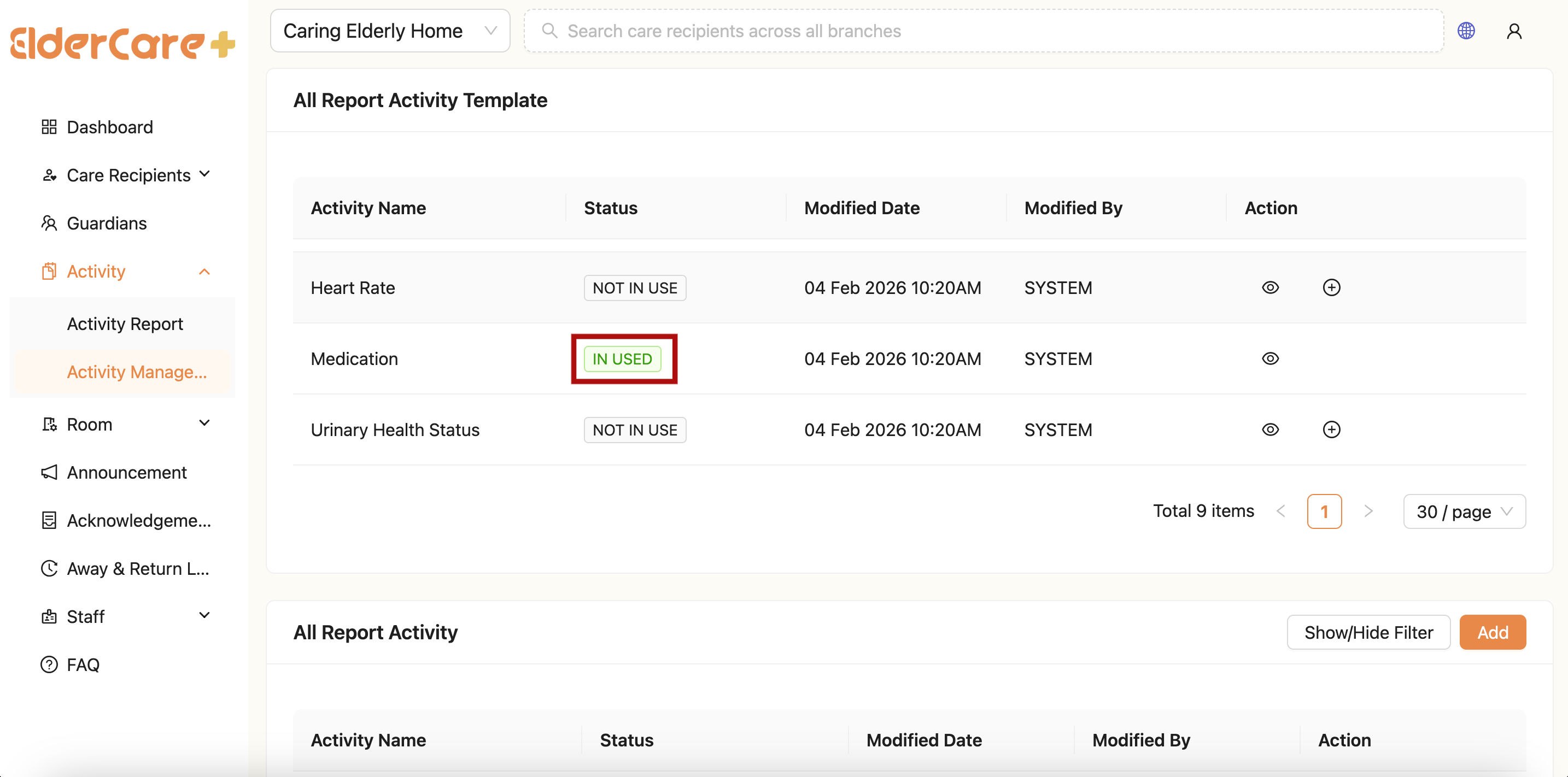
- The Activity Template's status will change to "IN USED" in green tag, and show on the All Report Activity list
How to Edit Activity Template
- Click Edit icon
- Click "Save"
- Only trigger alert fields in several Activity Template are allowed to edit