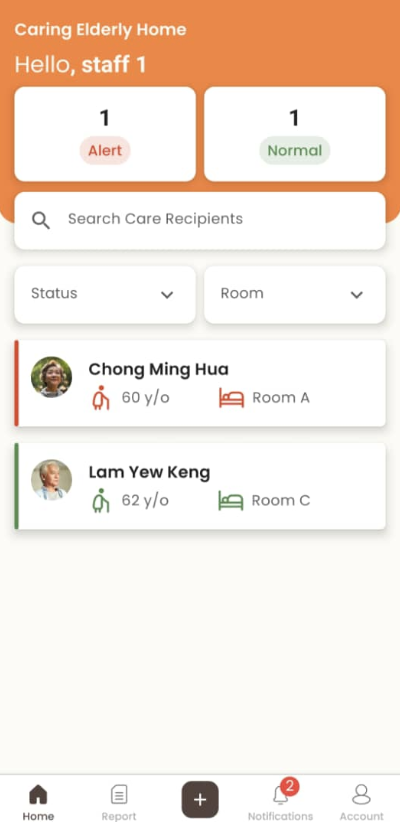
How to Differentiate Normal Care Recipients and Care Recipients Under Alert
- Normal care recipients are green in color
- Care recipients under alert are labelled in red
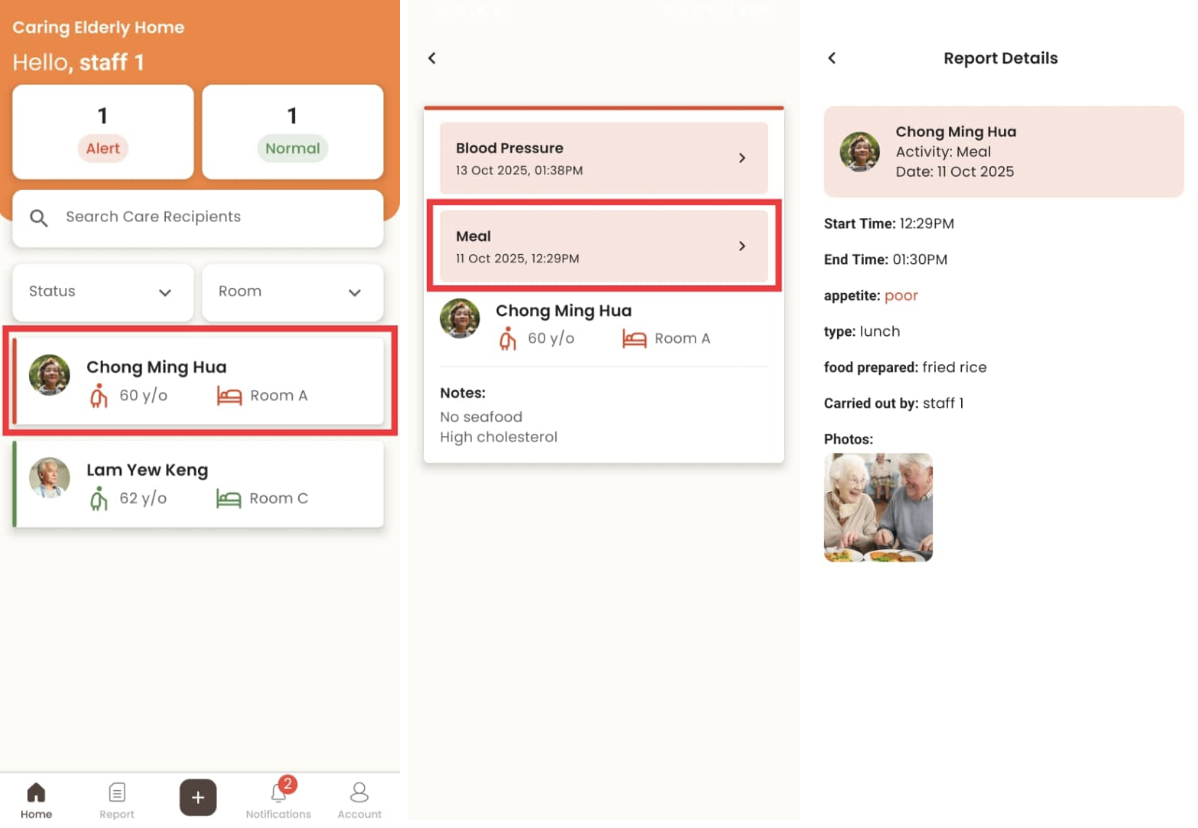
How to View Care Recipient Details
- Click on the care recipient
- Notes added from client portal are displayed
- For care recipients under alert, click on the alert to view report details
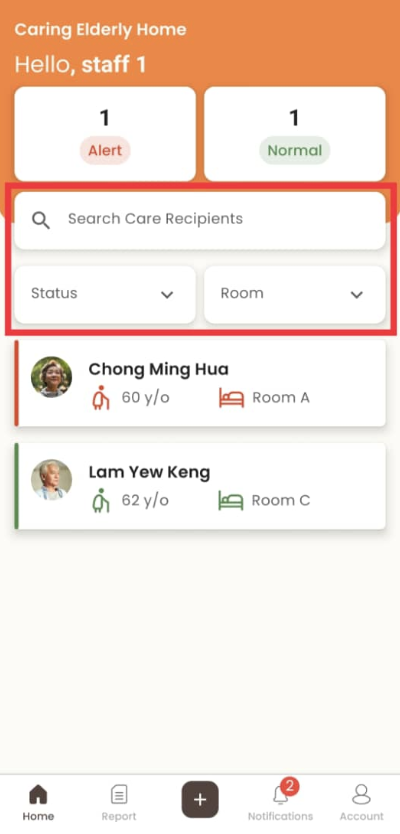
How to Search / Filter Care Recipient
- Click “Search Care Recipient” then fill in care recipient name
- Click “Status” then select the care recipient’s status to filter
- Click “Room” then select the care recipient’s assigned room to filter
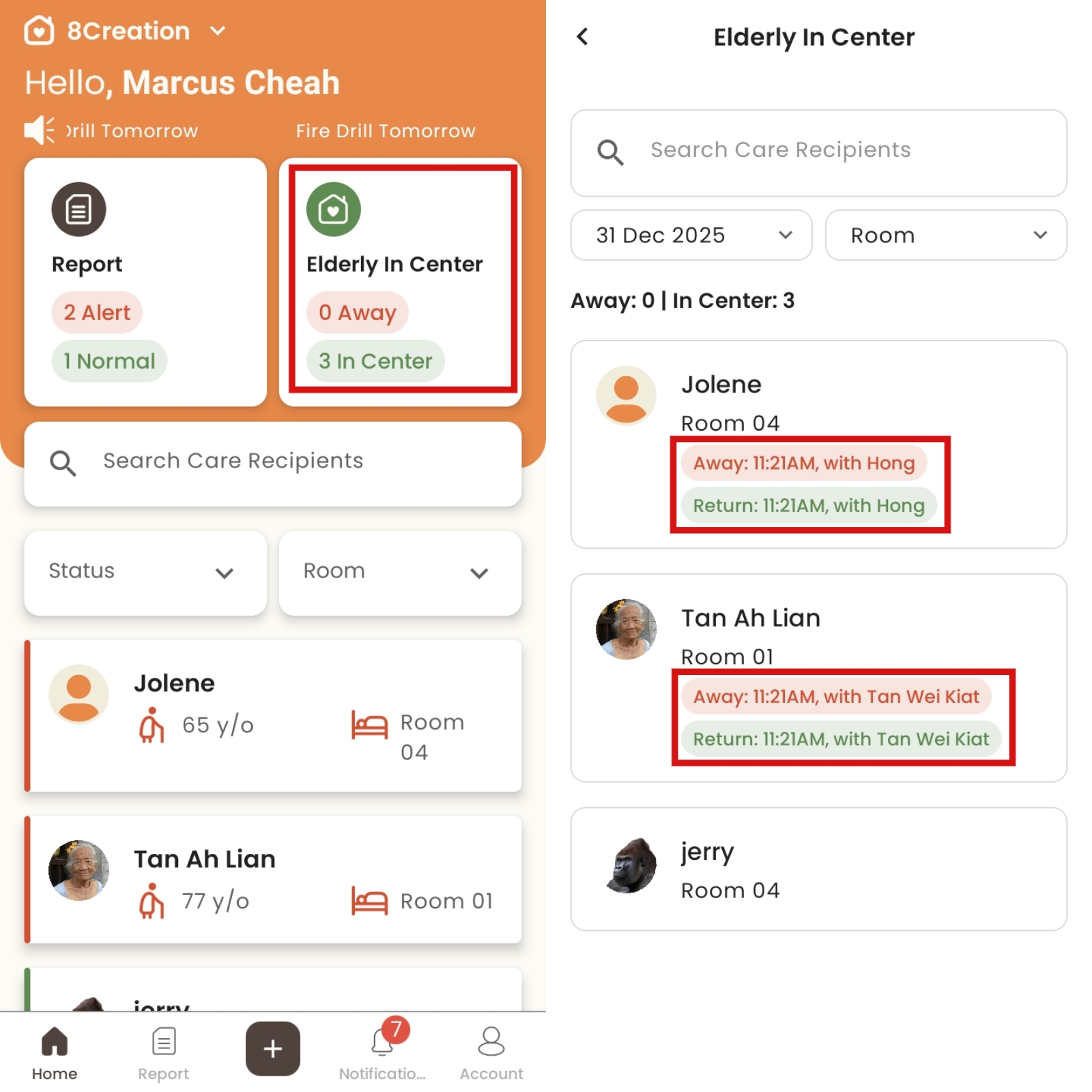
How to View Away and Return Record
- Click "Elderly In Center"
- The away record is labelled in red, while the return record is labelled in green.
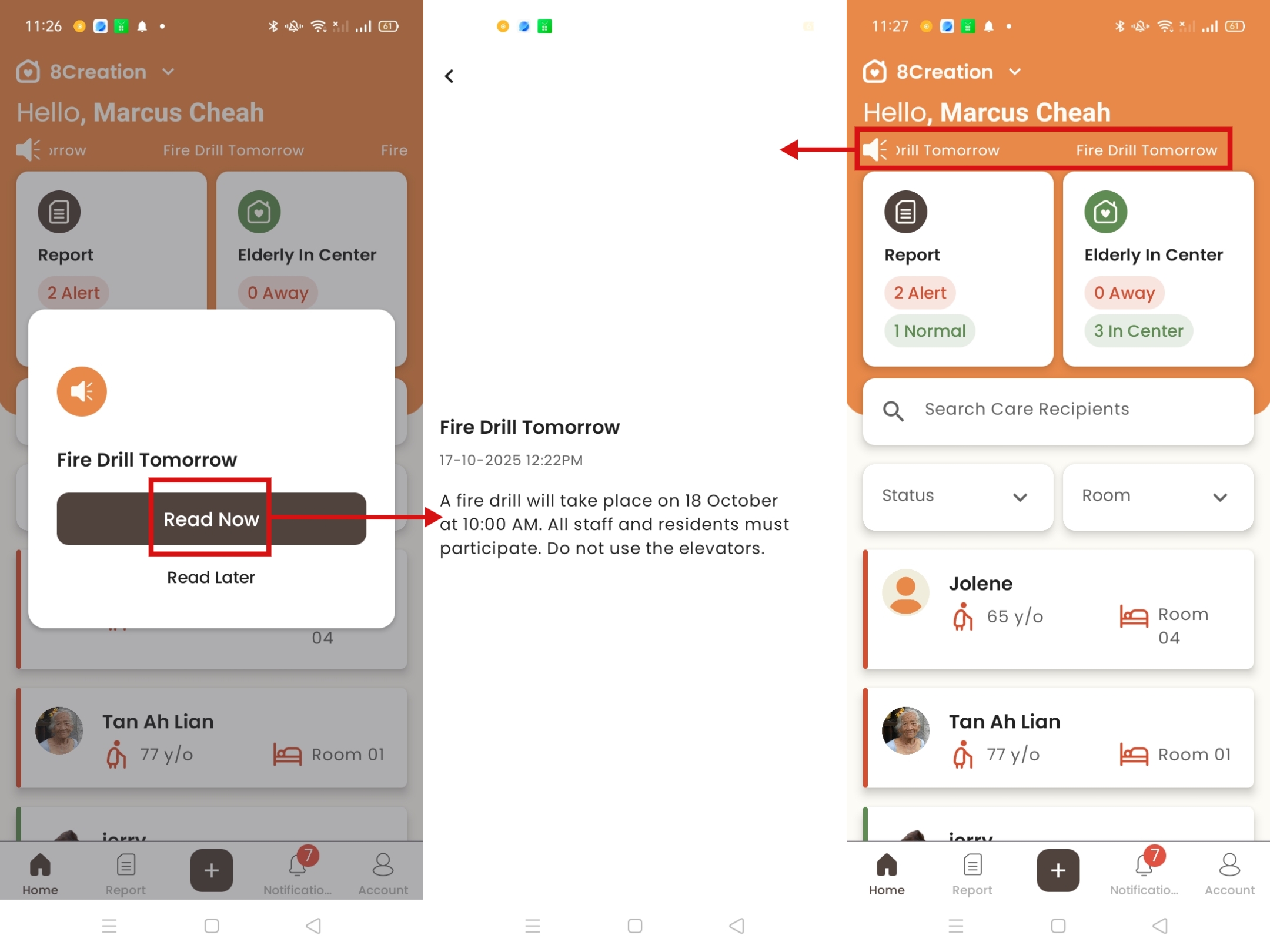
How to View Pinned Announcement
- When admin pins an announcement in the Admin Portal, a notification window will automatically appears on the Staff App homepage
- Click "Read Now" to view announcement details
- Click "Read Later" to close window and go back to homepage
- Pinned announcement is always displayed at the top of the Staff App homepage
- Click the announcement to view the announcement details
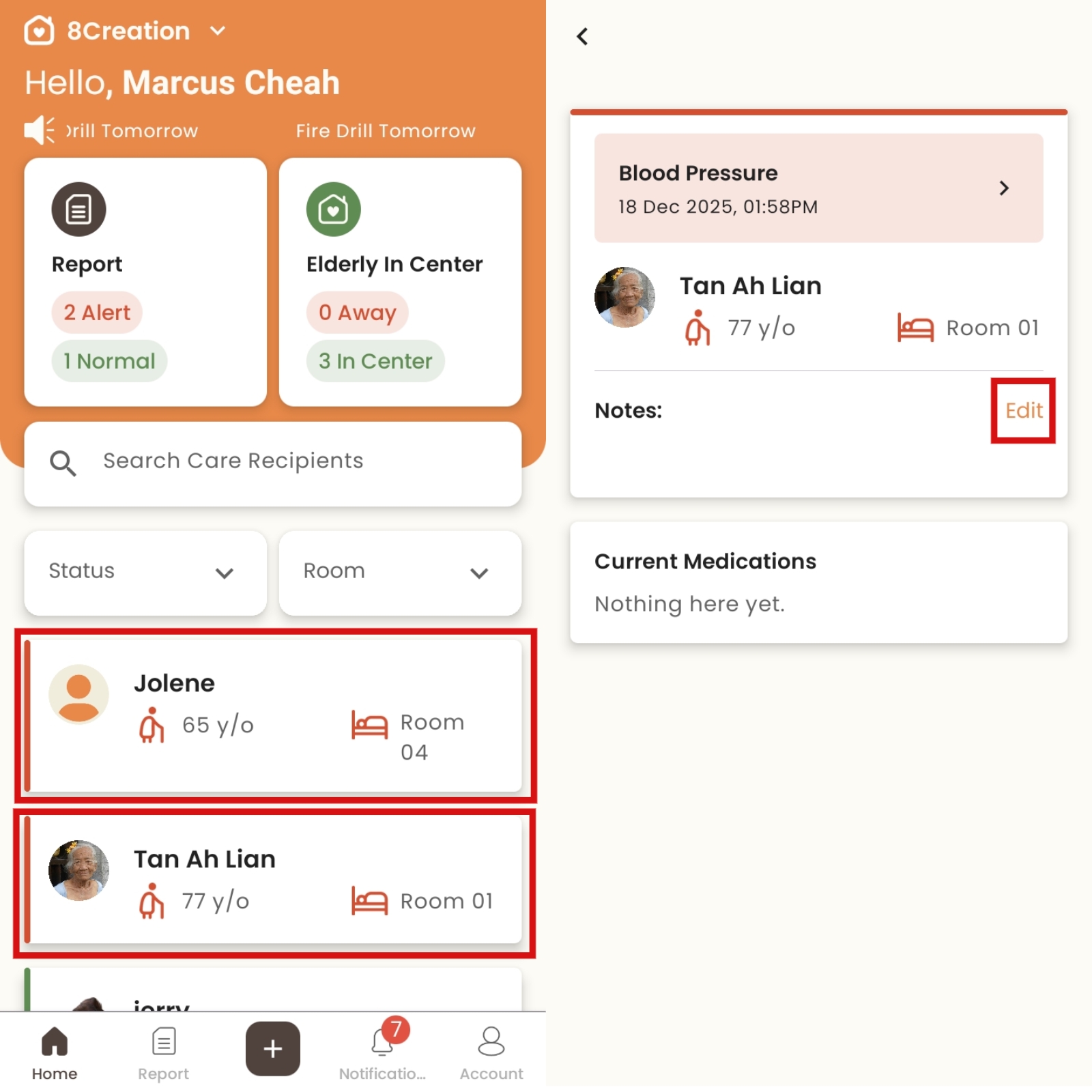
How to Edit Care Recipient's Notes
- Click the corresponding Care Recipient
- Click "Edit"
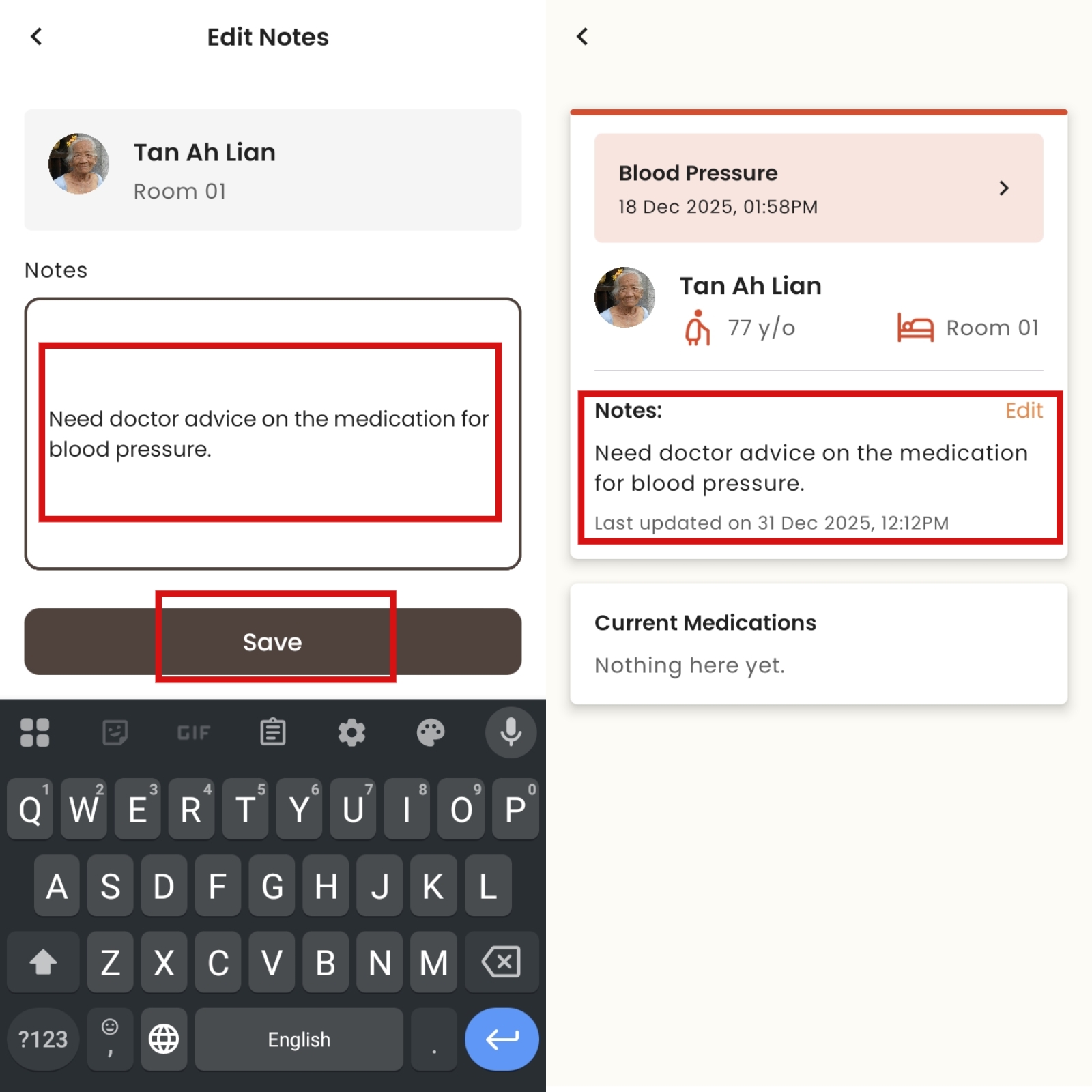
- Edit the notes, then click "Save"
- The notes will show on the "Notes" section