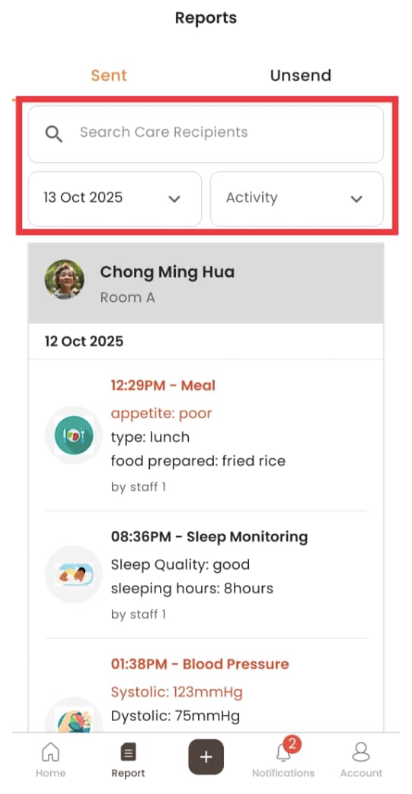
How to View Unsend Report
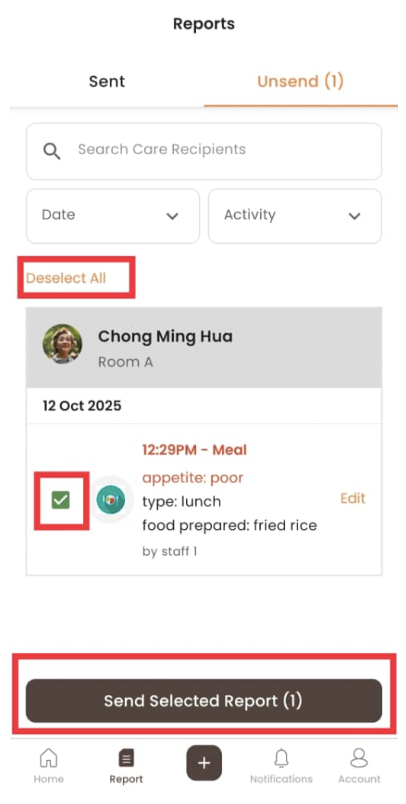
- Click “Unsend”
- The reports that consist of alerts will be highlighted in red
- Alert will be triggered once the report is published
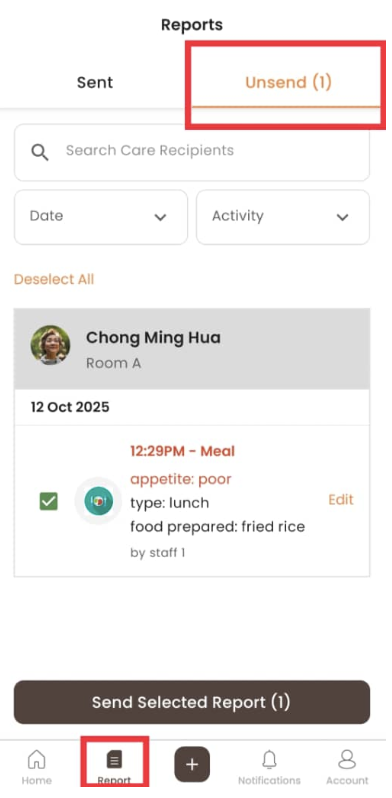
How to Search / Filter Unsend Report
- Click “Search Care Recipient” then fill in care recipient name
- Click “Date” then select a date to filter
- Click “Activity” then select an activity to filter
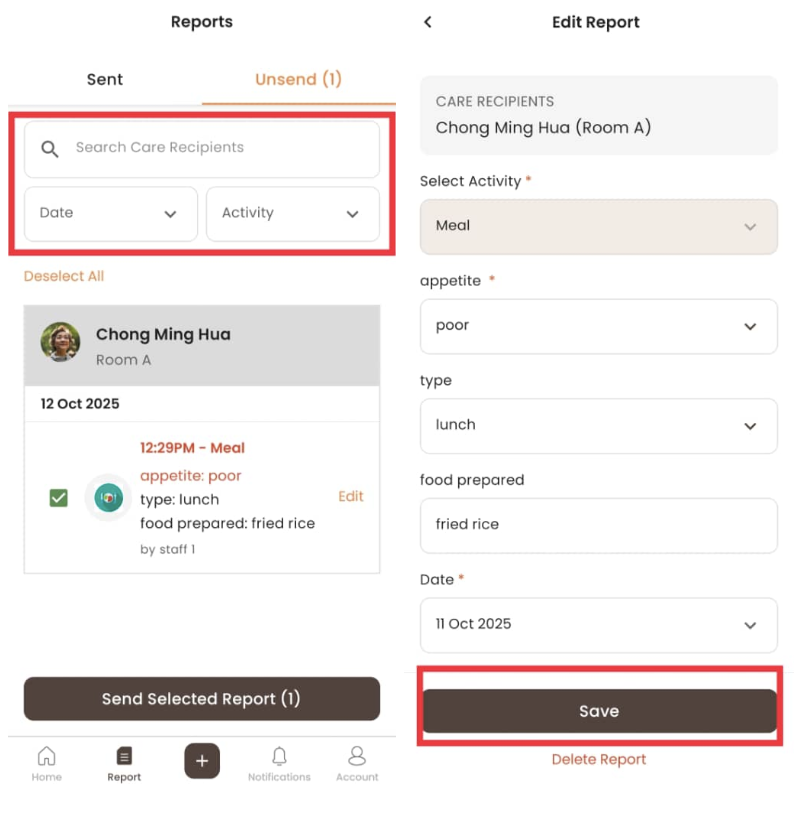
How to Edit Unsend Report
- Click “Edit”
- After making changes, click “Save”

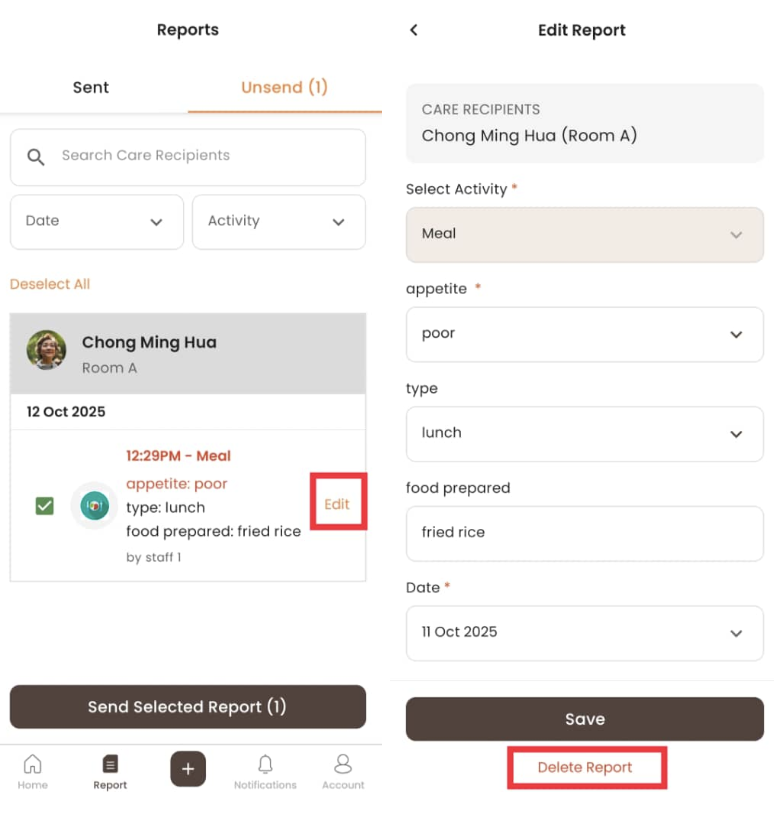
How to Delete Unsend Report
- Click “Edit”
- Click “Delete Report”
How to Publish Unsend Report
- Click on the tickbox to select reports, or click “Select All”
- Click “Send Selected Report”
How to View Sent Report
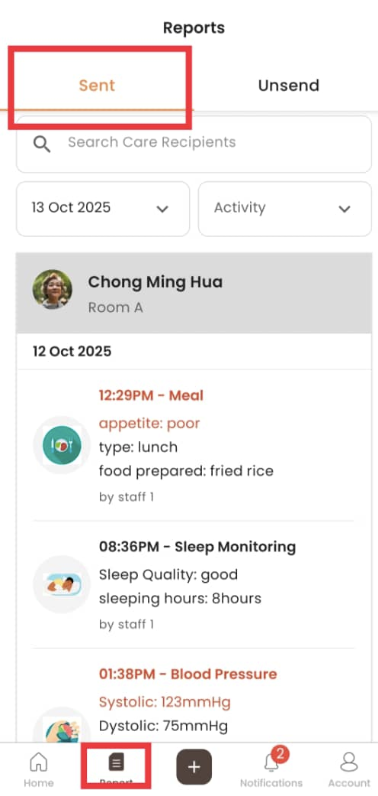
- Click “Sent”
How to Search / Filter Sent Report
- Click “Search Care Recipient” then fill in care recipient name
- Click “Date” then select a date to filter
- Click “Activity” then select an activity to filter