Summary Report
Video Guide for Generate Summary Report
How to Generate Summary Report
- Location: Reports -> Summary Report
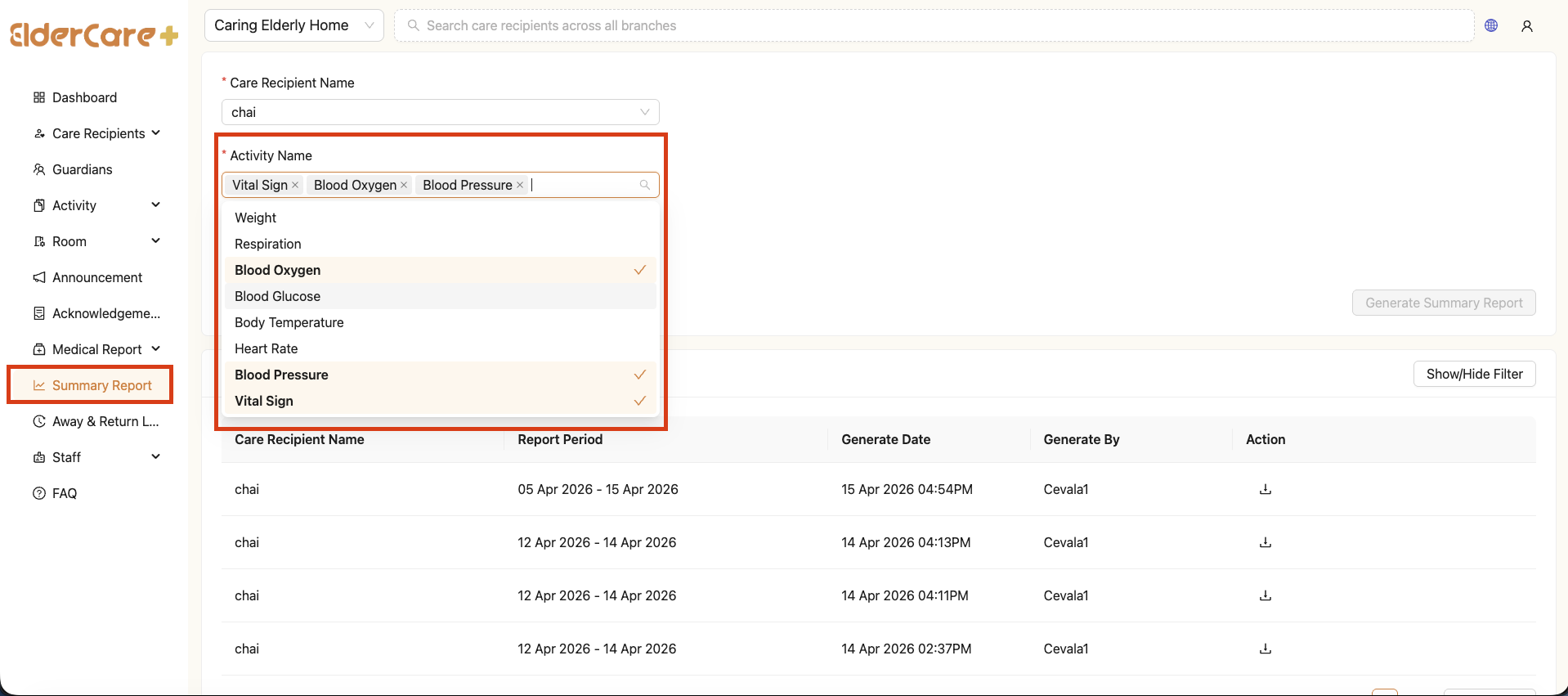
- Select the Care Recipient
- Select one or multiple Report Activities (e.g. Vital Signs, Blood Pressure, etc.)
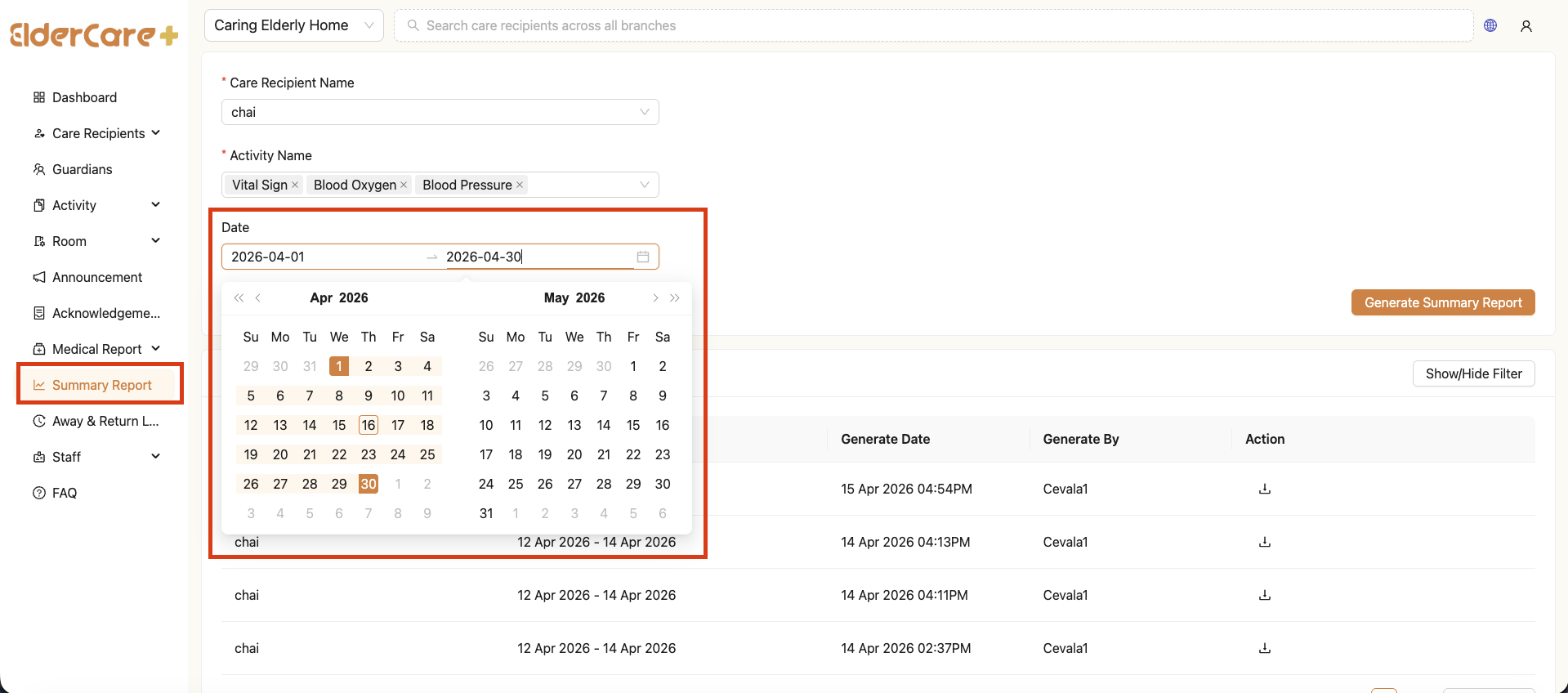
- Select the Date Range
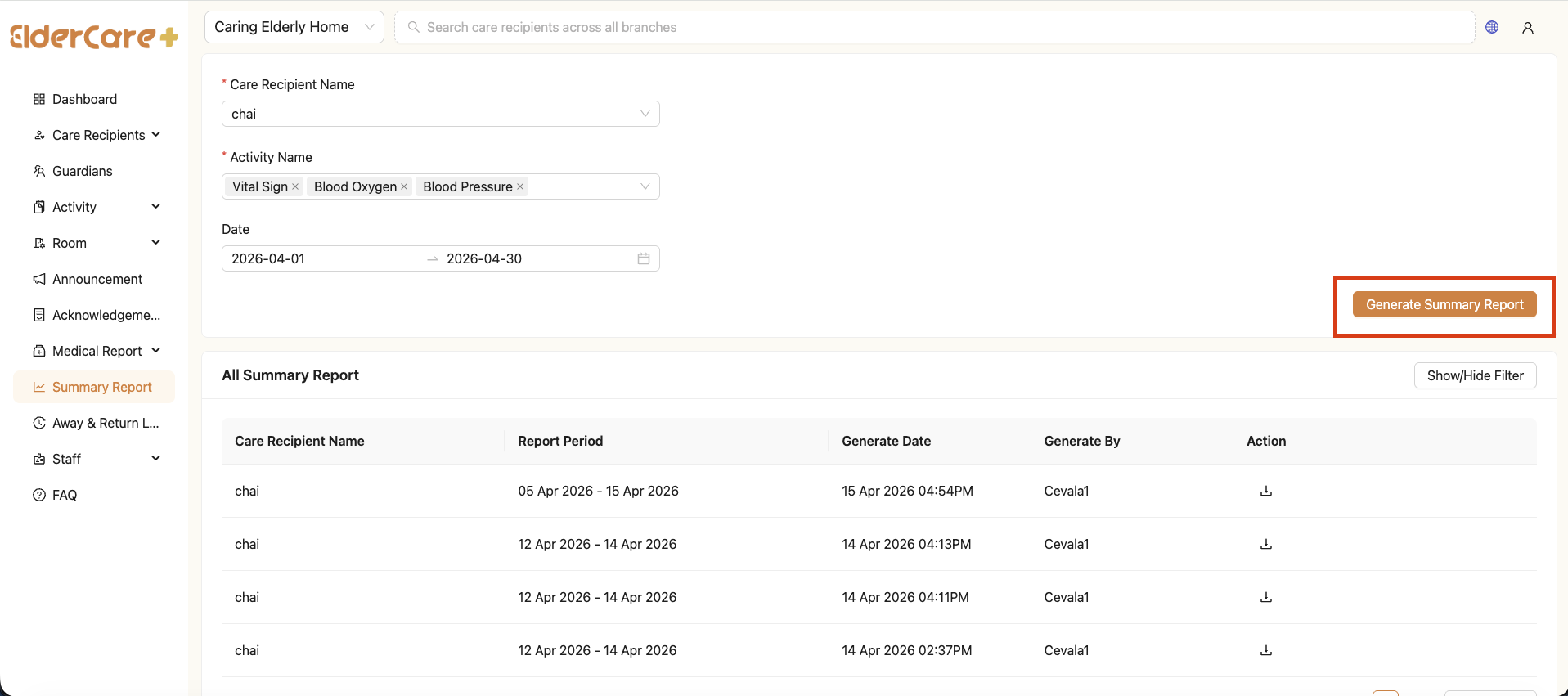
- Click “Generate Report”
- The system will automatically generate and download the report in
.xlsxformat
How to Download Previously Generated Report
- Location: Reports -> Summary Report
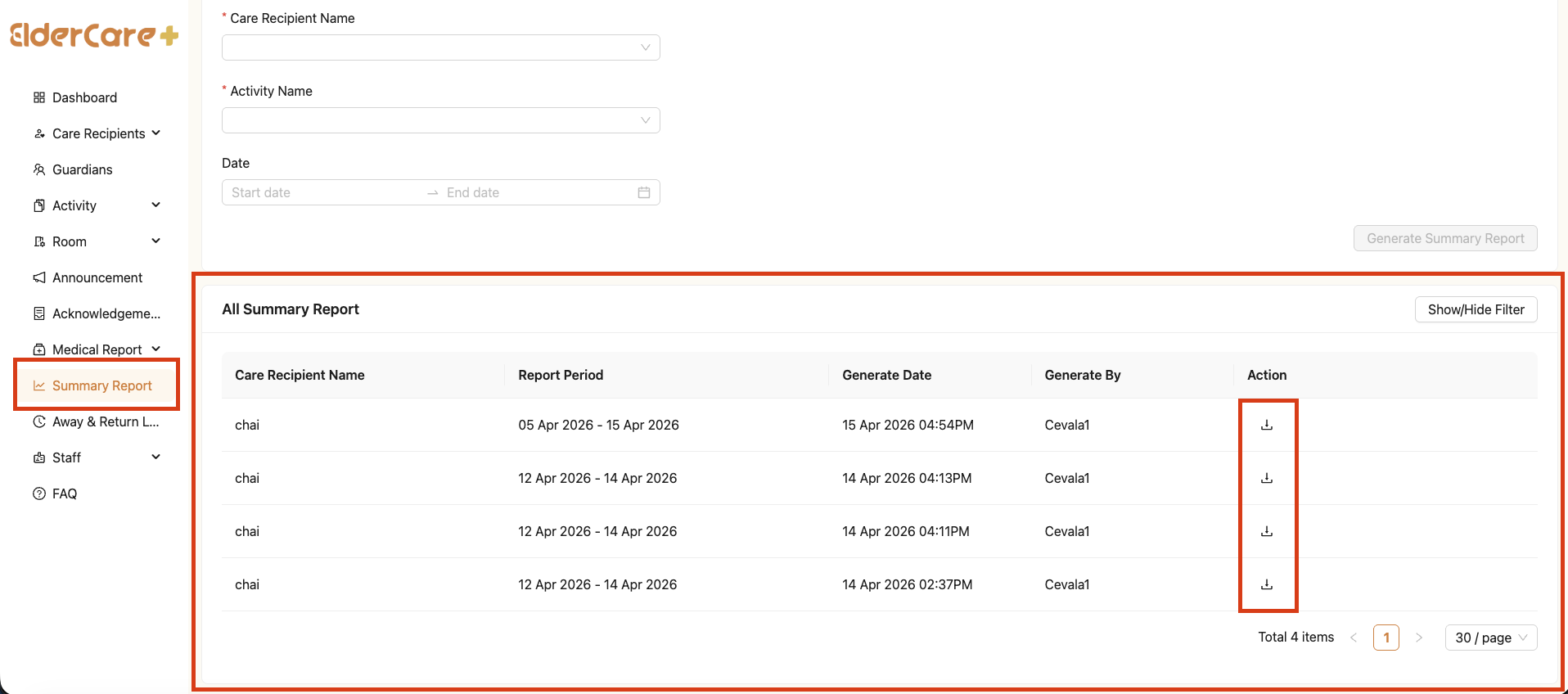
- Locate the All Summary Report list section
- Click “Download” to download the report in
.xlsxformat
Notes
- You can select one or multiple activities to include in the report
- Only activities configured under Feature Templates will be available for selection
- The exported file will be in Excel (.xlsx) format for easy viewing and analysis
- Previously generated reports can be downloaded anytime from the Report History section
- Ensure the selected date range contains available data for accurate report generation