Reminder
Video Guide for Set Reminder
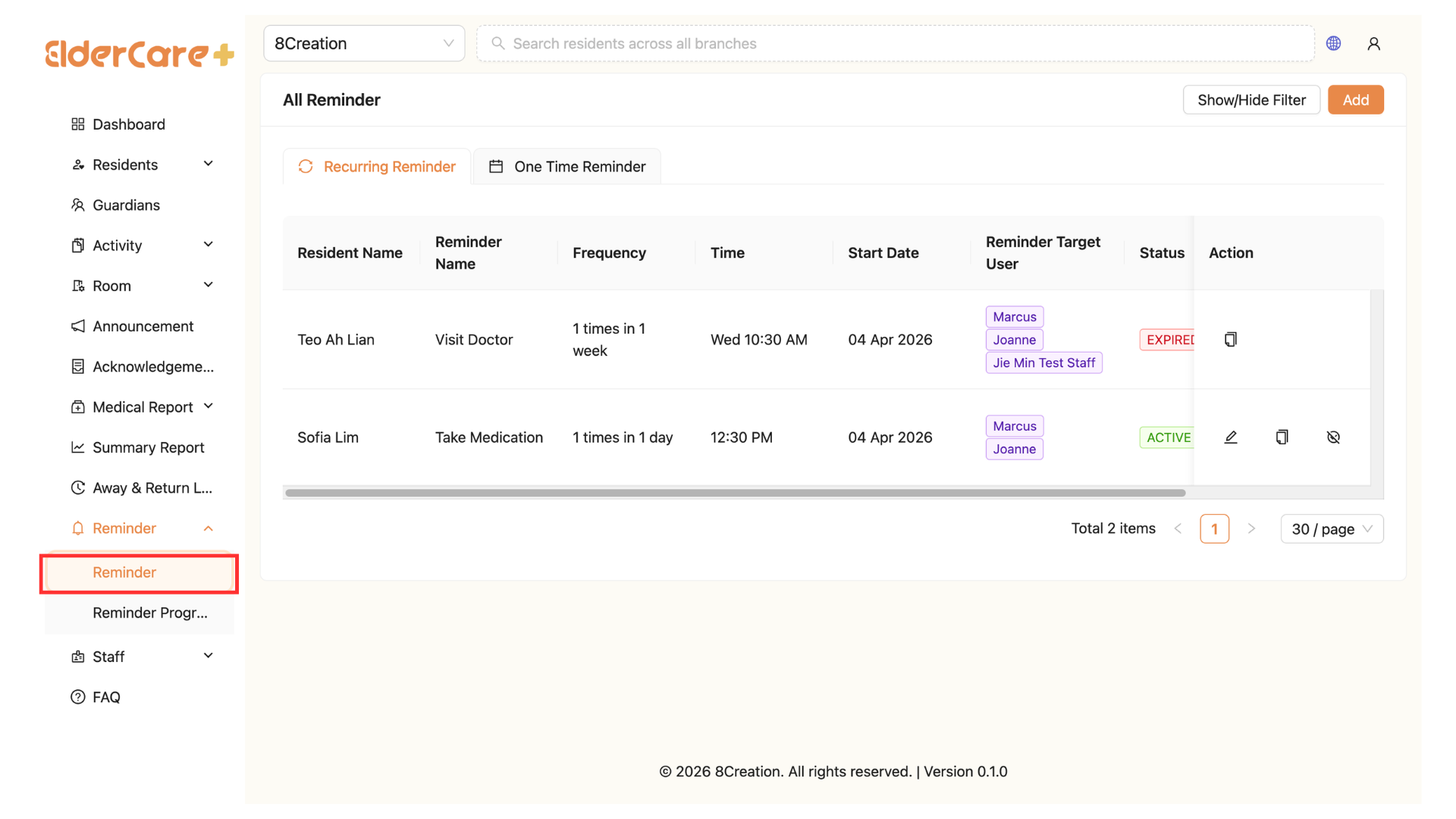
How to View Reminder
- Location: Reminder
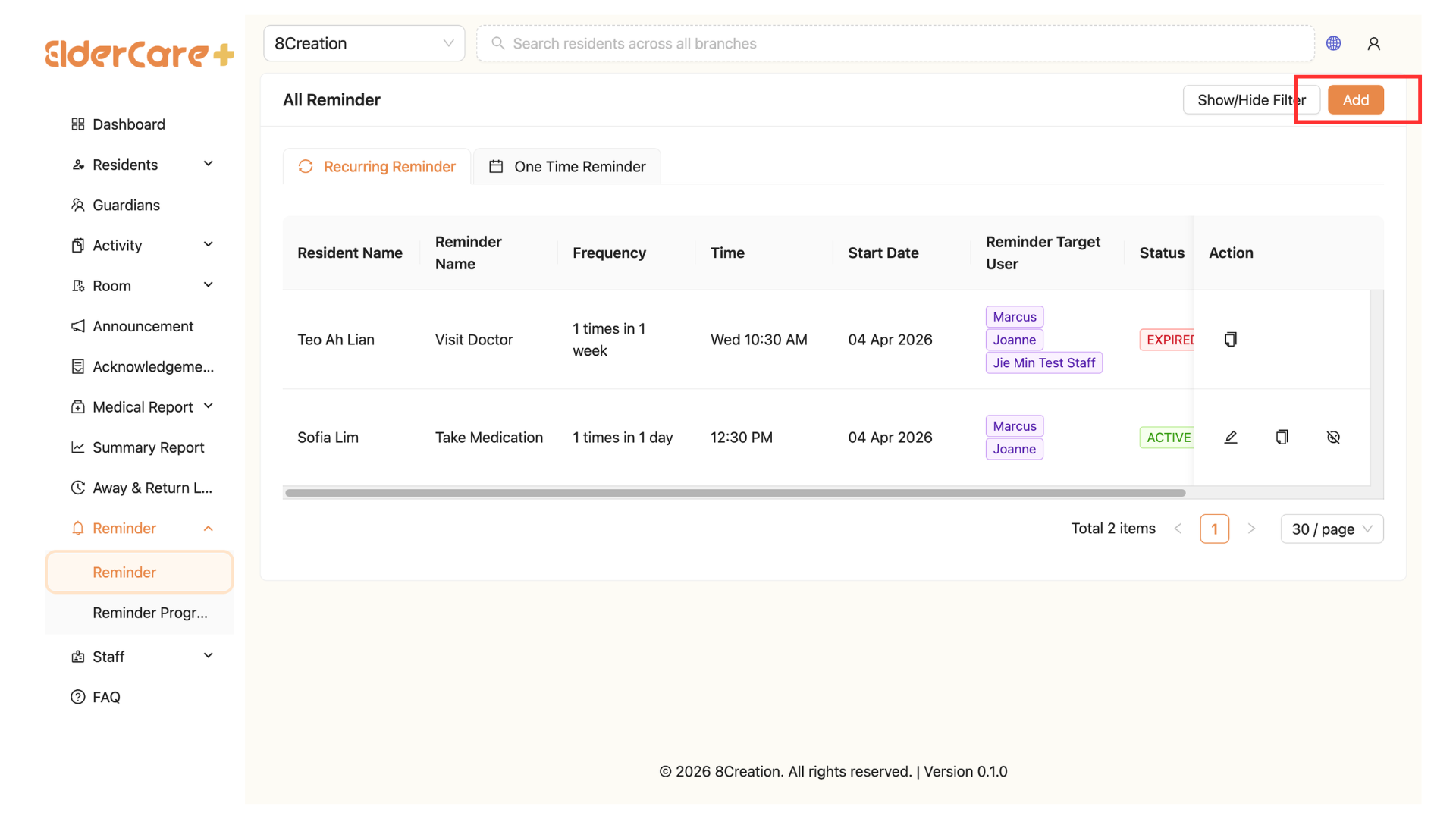
How to Add Reminder
- Click "Add"
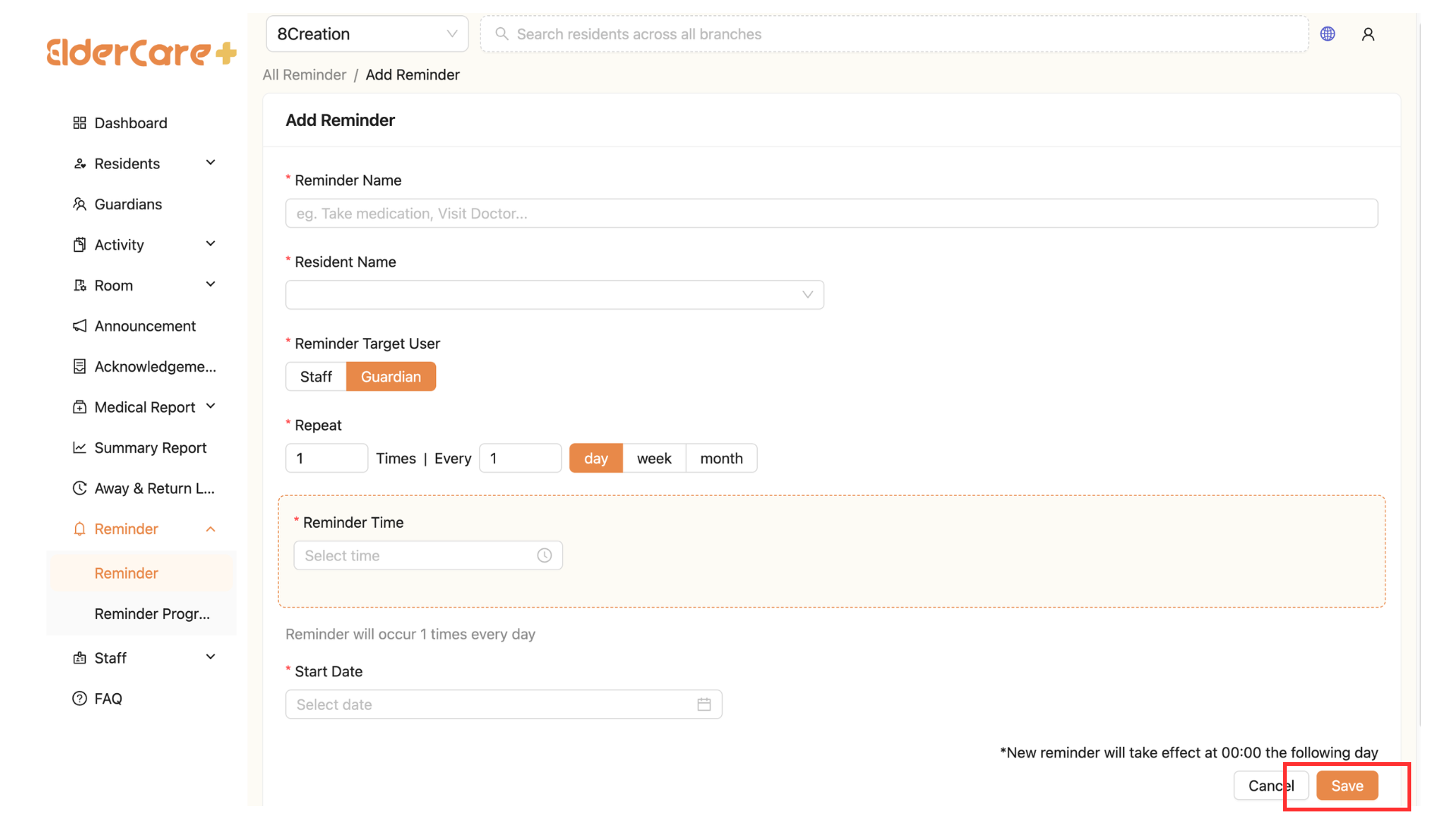
- Fill in the required fields, then click "Save"
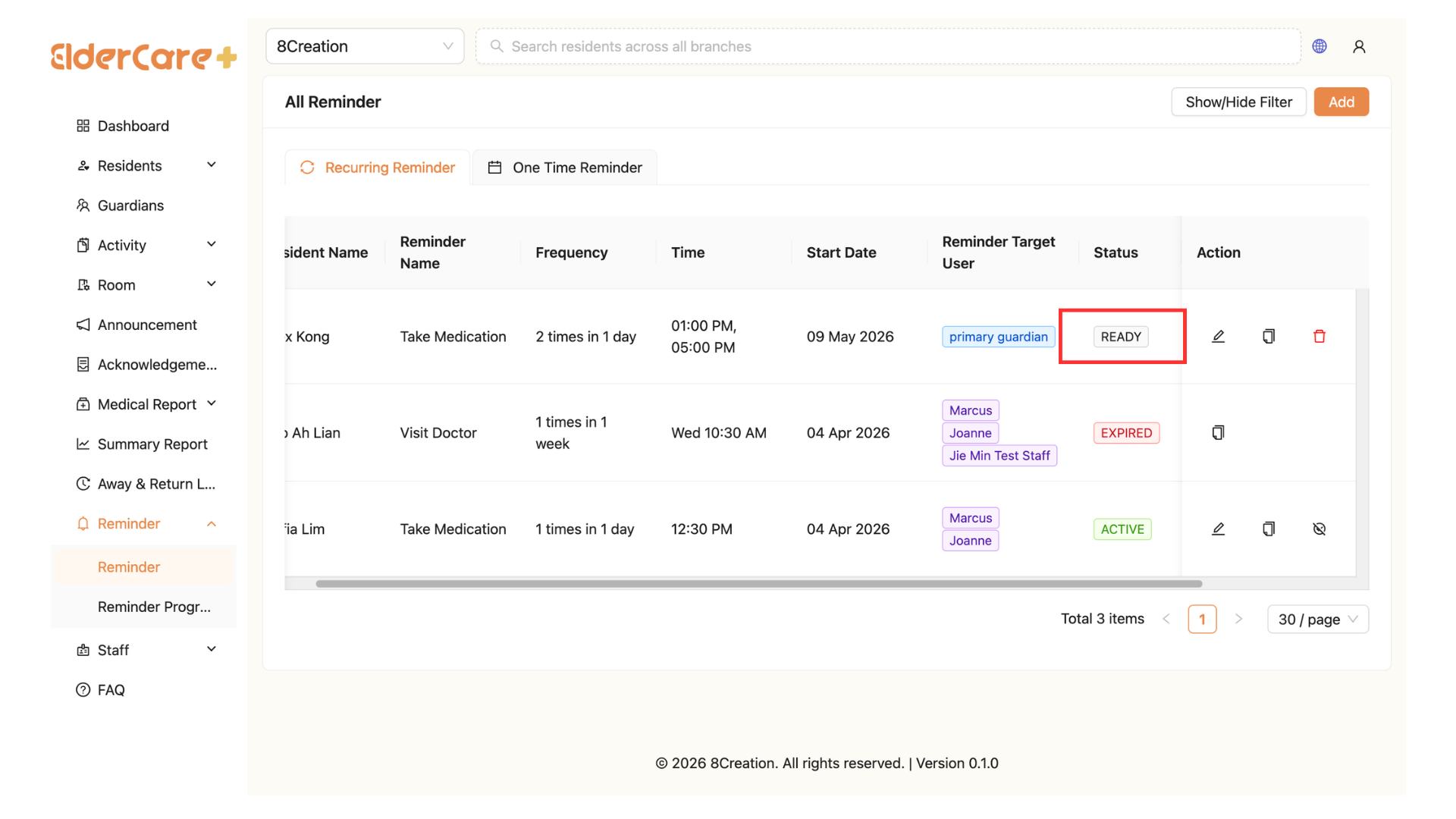
- After Save, the reminder status will become Ready which waiting to start
How to Edit Reminder
- Click on Edit icon
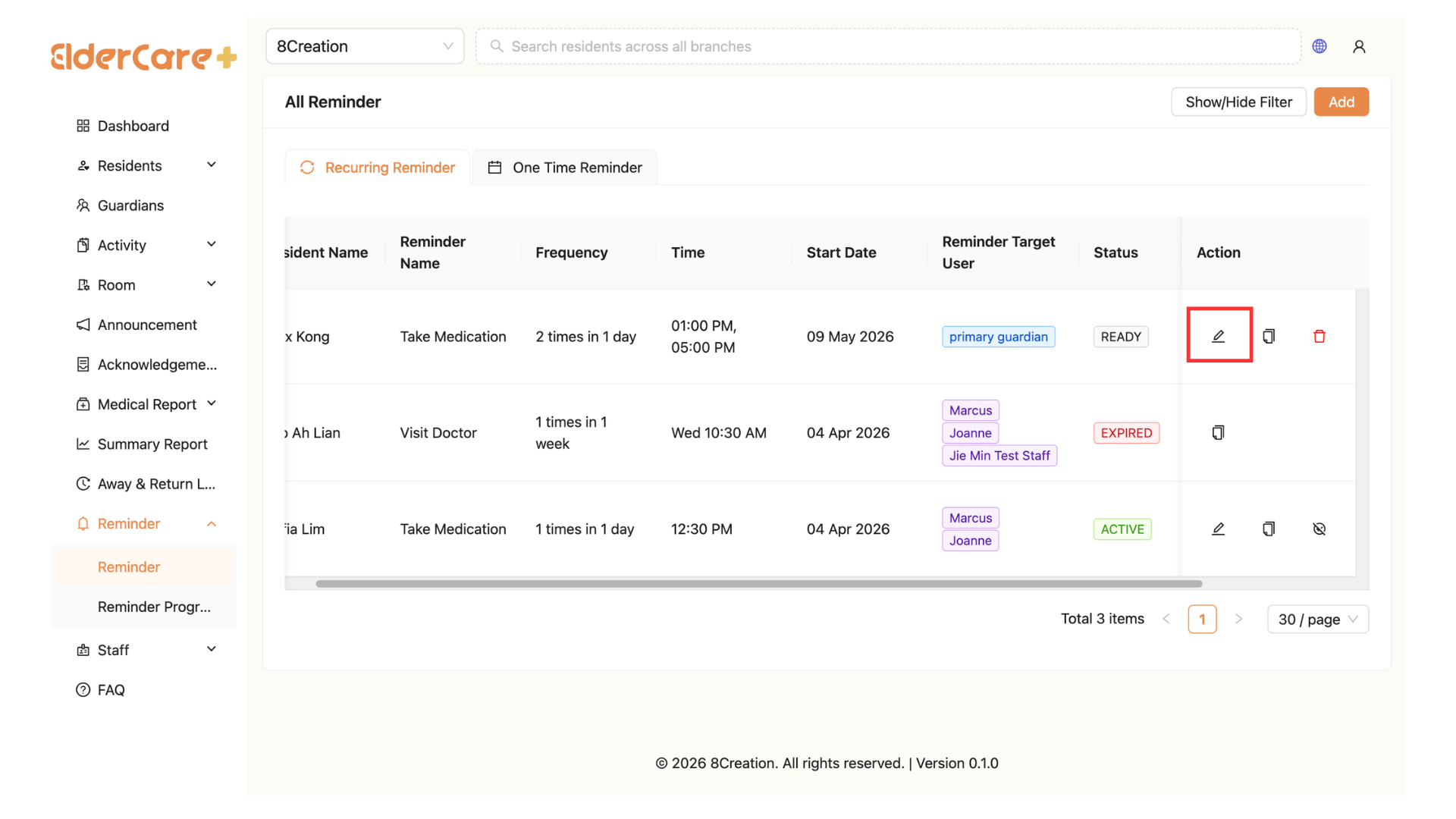
- Make changes in the required field, then click "Save"
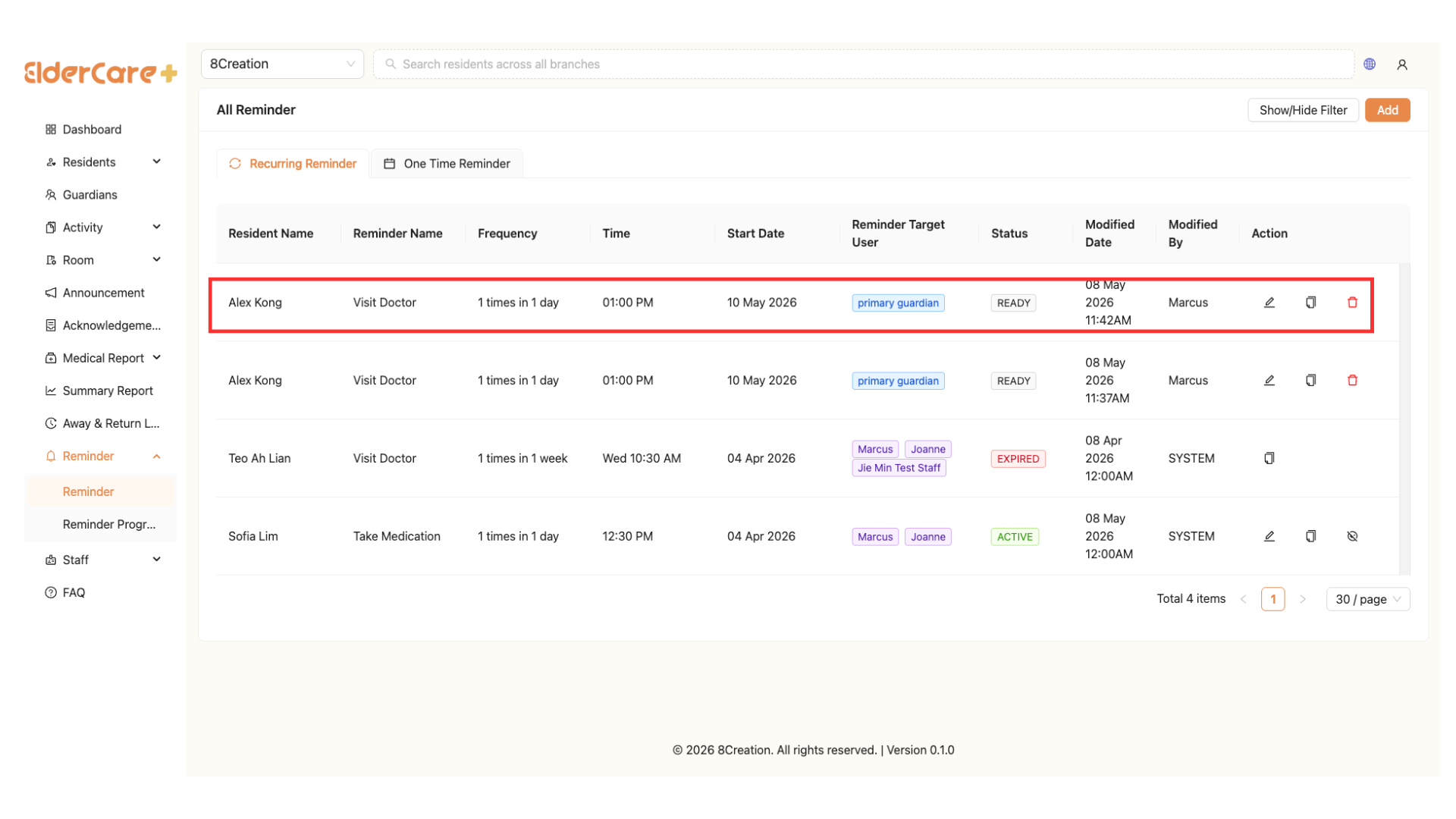
How to Duplicate Reminder
- Click on Duplicate icon
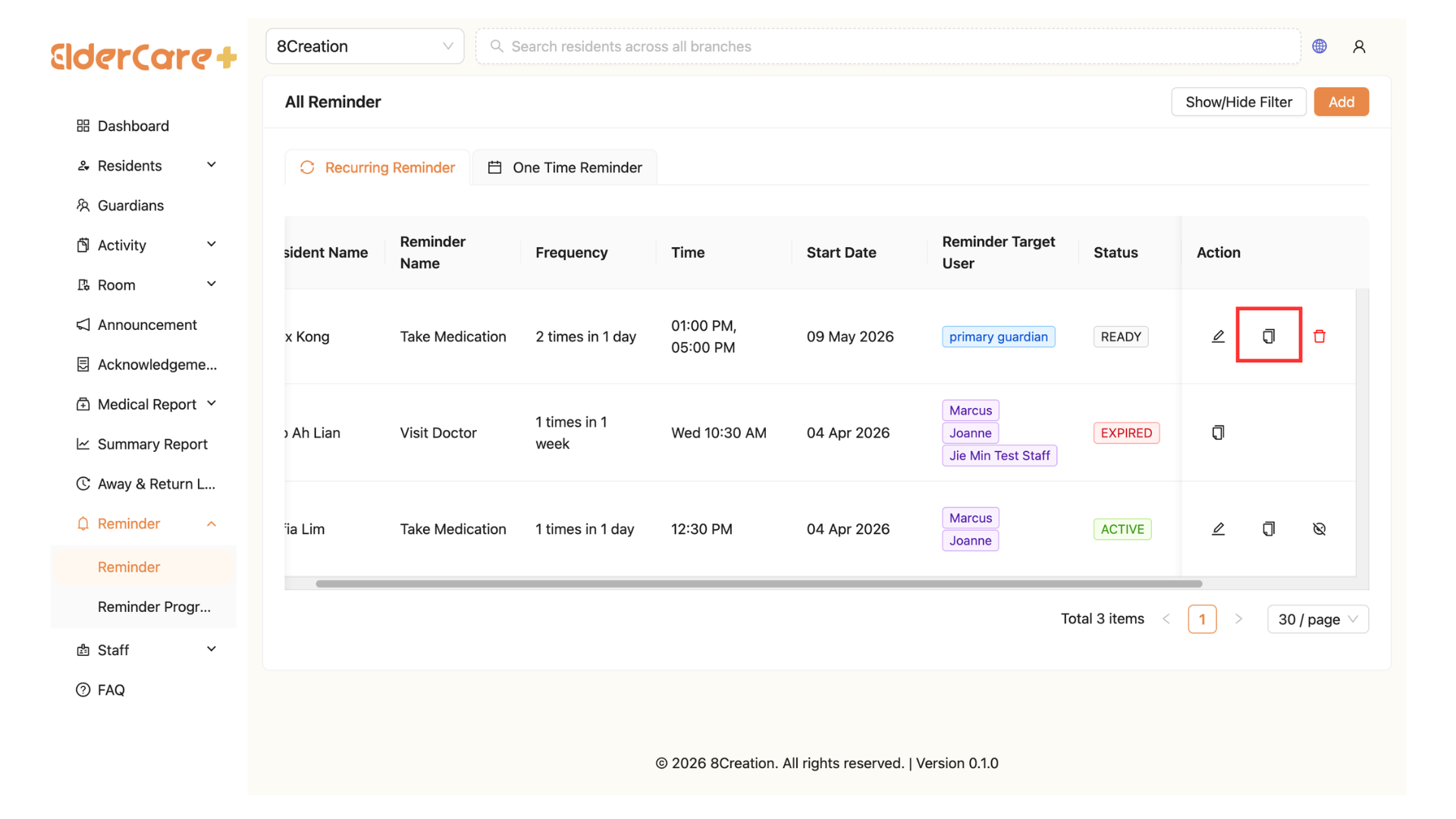
- Make changes in the required field, then click "Save"
- Duplicated entry will be displayed
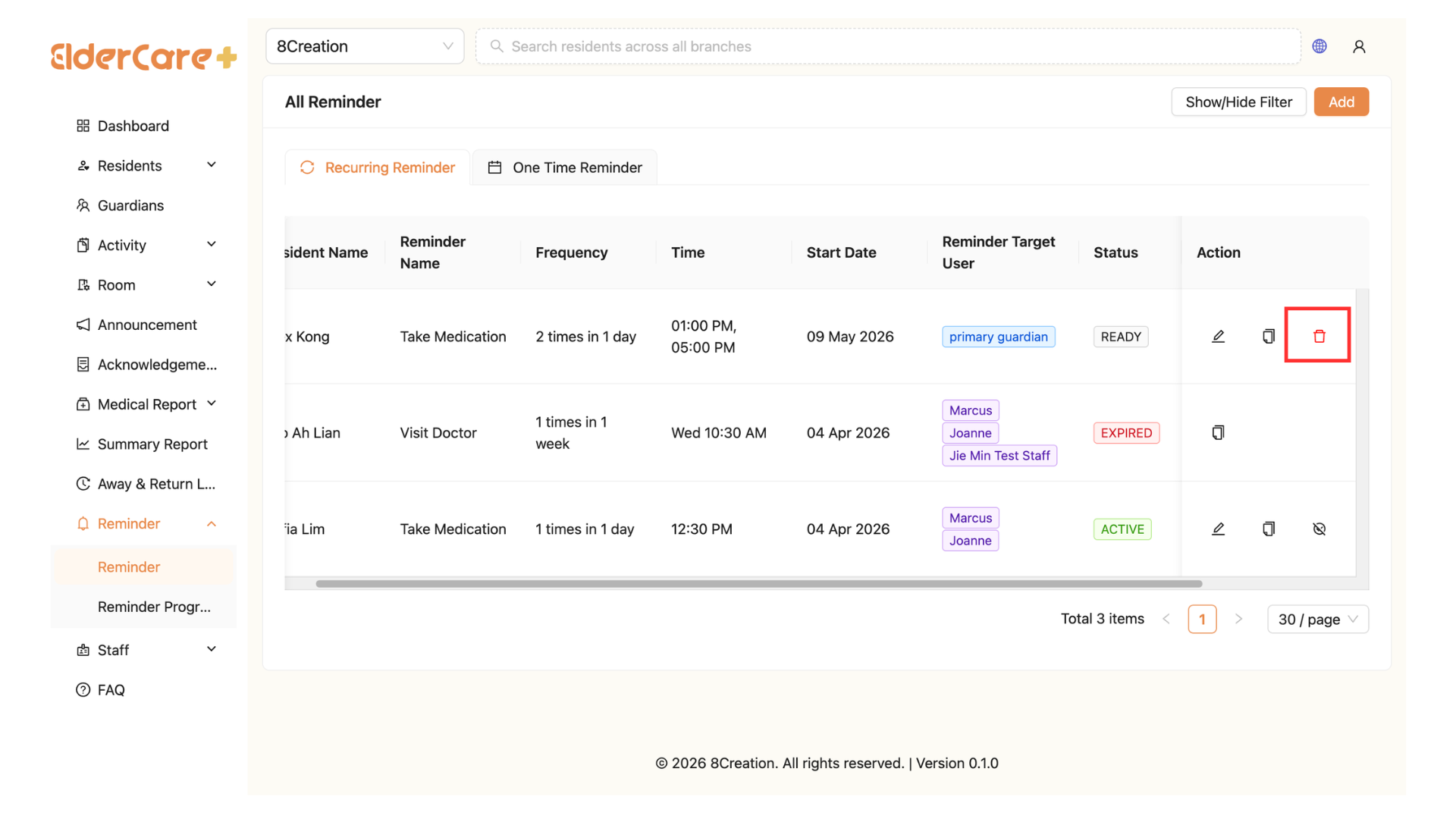
How to Delete Reminder
- Click on Delete icon
How to Filter Reminder
- Click "Show/Filter"
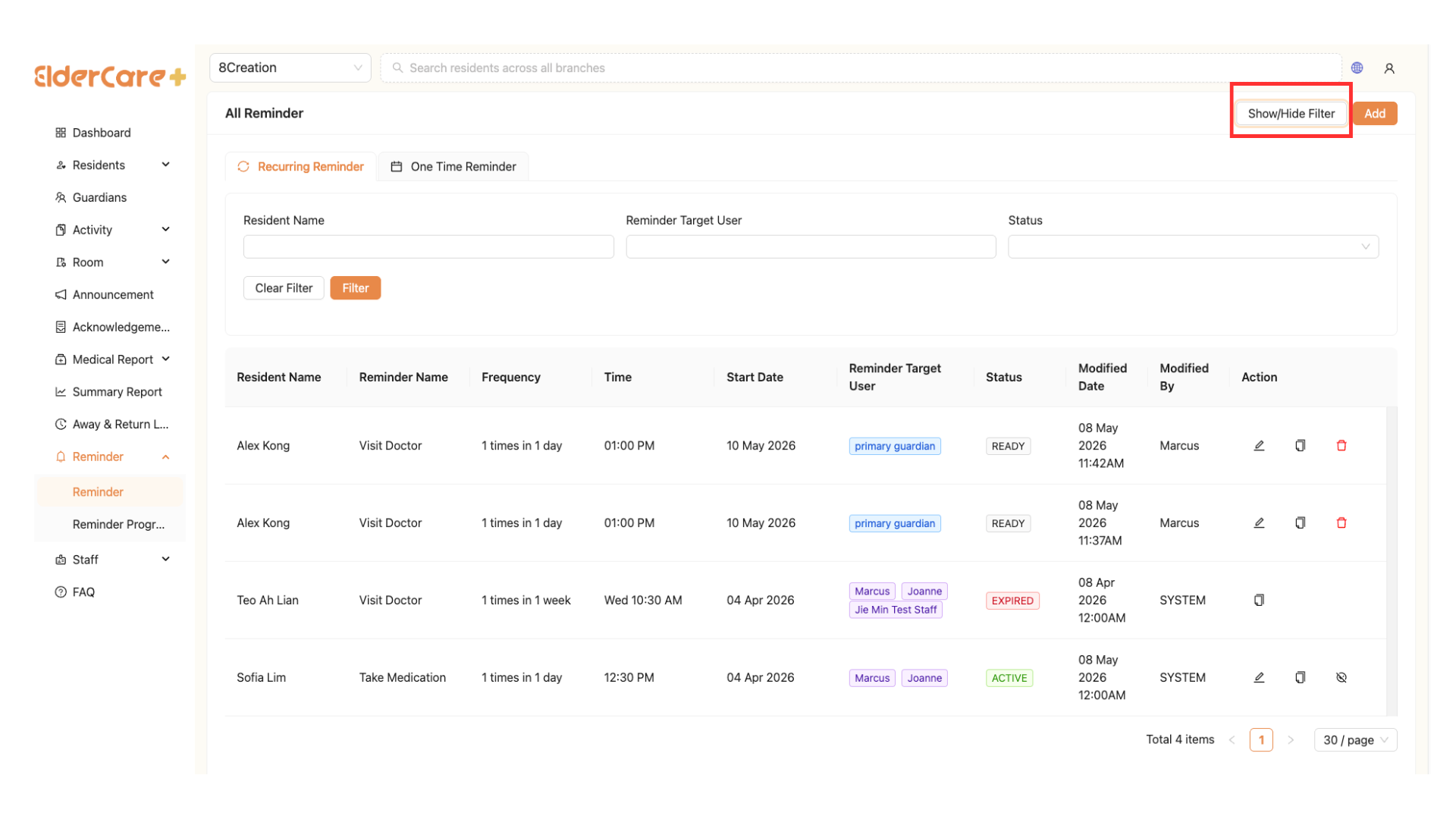
- Fill in the field that you wish to filter, then click "Filter"
Reminder Status Type
| Status | Description |
|---|---|
| READY | The reminder is ready to start but has not started yet. |
| ACTIVE | The reminder has started and will occur according to the configured reminder settings. |
| INACTIVE | The reminder has stopped and will not occur according to the configured reminder settings. |
| EXPIRED | The reminder is no longer active because its target has been checked out or removed. |